


My next Facebook payout lands on November 22. It covers what my Pages earned in October, and it’s more than $20,000. Facebook pays it directly, for posts my Pages already published, with no sponsor in the middle.
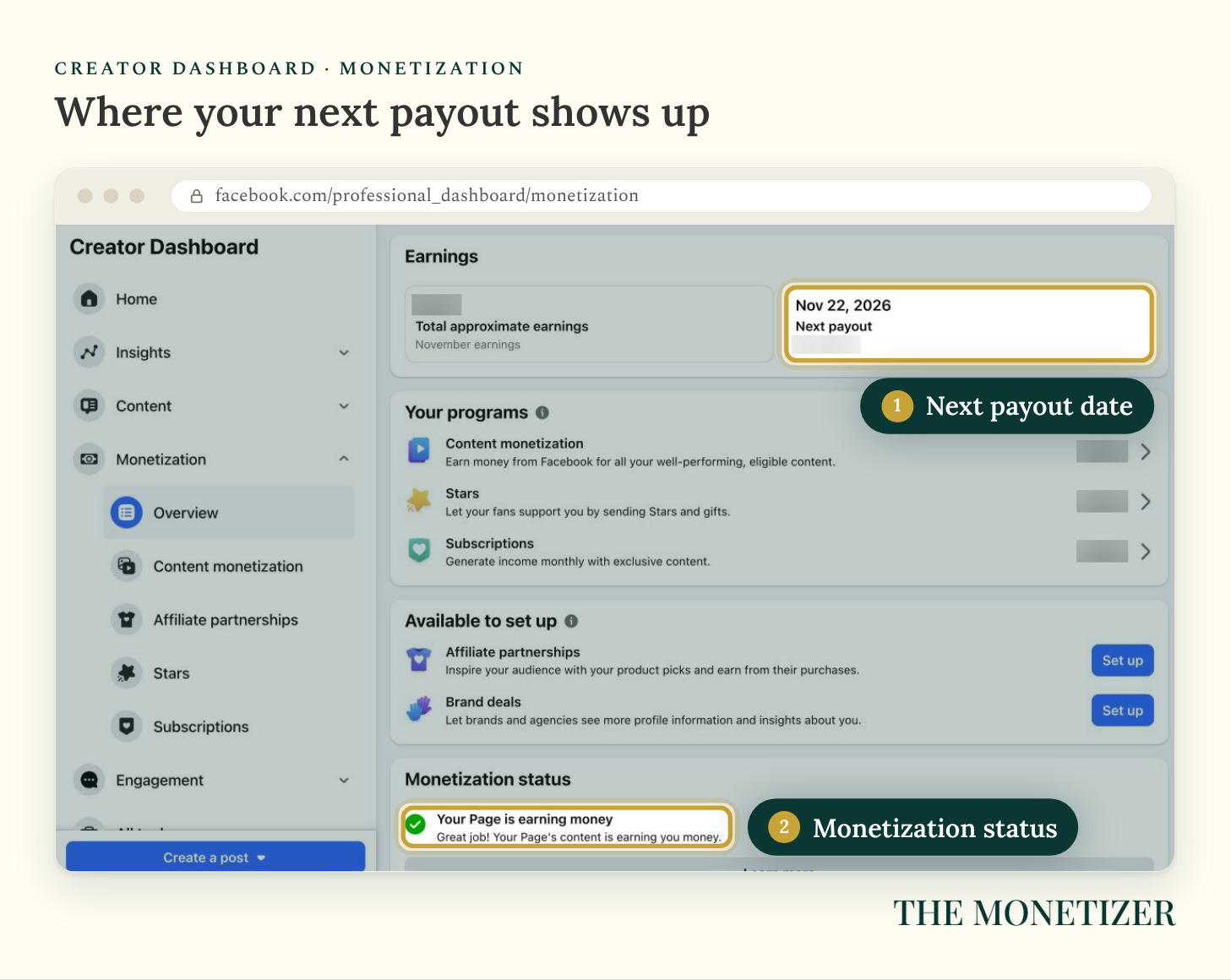
That money comes from one program: Facebook Content Monetization. If you learned Facebook money from older videos, most of what they taught is gone. In-stream ads, Ads on Reels, and the Performance Bonus ended on August 31, 2025, and Content Monetization took their place. It pays for public reels, photos, stories, and text posts.
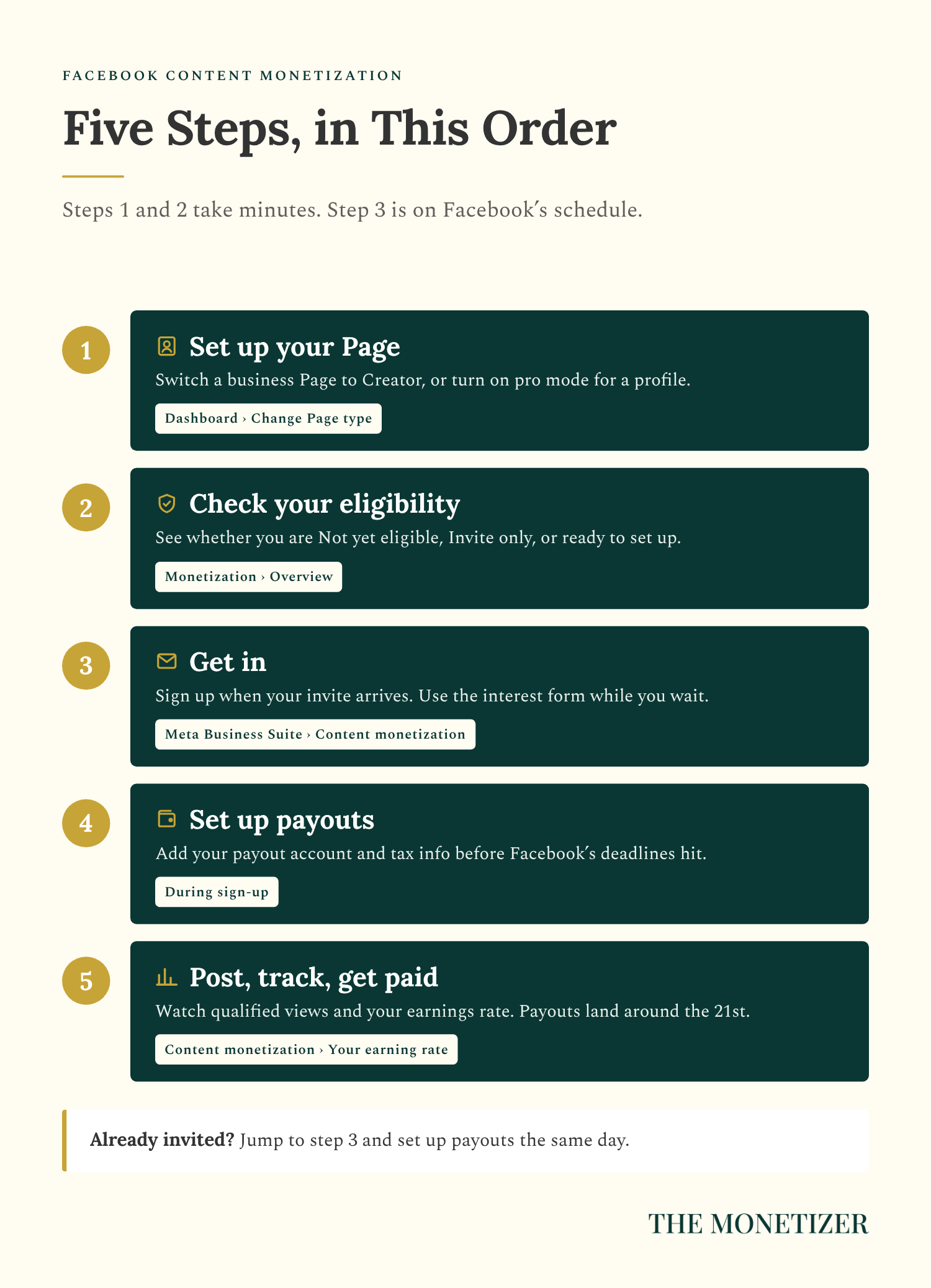
The catch is that it’s still invite-only. Most people hit a screen that says “Invite only,” fill out a form, and wait without knowing what to do next. This guide covers every screen between that moment and your first payout: how to set up your Page so Facebook can pay it, how to check your eligibility, how the invite works, how payouts work, and how to read the two numbers that decide what you earn.
Every screenshot comes from my own dashboards. Page names, photos, and dollar amounts are blurred, because the screens matter more than my numbers.
By the end, you’ll have four things in place:
A Page Facebook can pay, set to the right type, or a profile with pro mode turned on.
Your eligibility checked, with a next step whether you’ve been invited or not.
A payout account, set up before Facebook’s deadlines can cost you money.
A weekly earnings check, built on qualified views and your earnings rate.
You can do the setup steps today, whatever your follower count. Paid subscribers also get a printable kit at the bottom of this post.
Why Facebook Is Worth Your Time Right Now
Facebook paid creators nearly $3 billion in 2025, up 35% from the year before, according to Meta. The number of creators earning more than $10,000 a year grew by more than 30%. That’s a platform spending real money to keep creators posting.
About 60% of those payouts went to reels. The other 40% went to stories, photos, and text posts. Most Facebook advice skips that second number, and Part 4 shows you why it matters.
I’ve built 10.4 million followers across LGBTQ+ media properties. On Facebook, my Pages get paid every month without a brand deal attached, and Content Monetization is how.
Facebook is also recruiting. Its Creator Fast Track offers established creators with at least 100,000 followers on Instagram, TikTok, or YouTube $1,000 a month for three months, or $3,000 a month with more than a million followers. Those creators also get immediate access to Content Monetization. That tells you how badly Facebook wants creators posting there right now.
Before You Start: Find Your Path
Three quick checks decide where you start.
Check 1: Are you 18 or older? Facebook doesn’t allow monetization for anyone under 18.
Check 2: Page or profile? Content Monetization works on Facebook Pages and on personal profiles with pro mode turned on. One edge case: if you live in the EU, the EEA, or Switzerland and pay for an ad-free Meta subscription, your ability to monetize with ads is limited (Meta).
Check 3: Do you follow the rules? Facebook checks your whole account against its Partner Monetization Policies and each post against its Content Monetization Policies, on top of its Community Standards. Meta explains all three in its rules for monetization.
Then open your dashboard. This chart sorts you onto one of four paths:
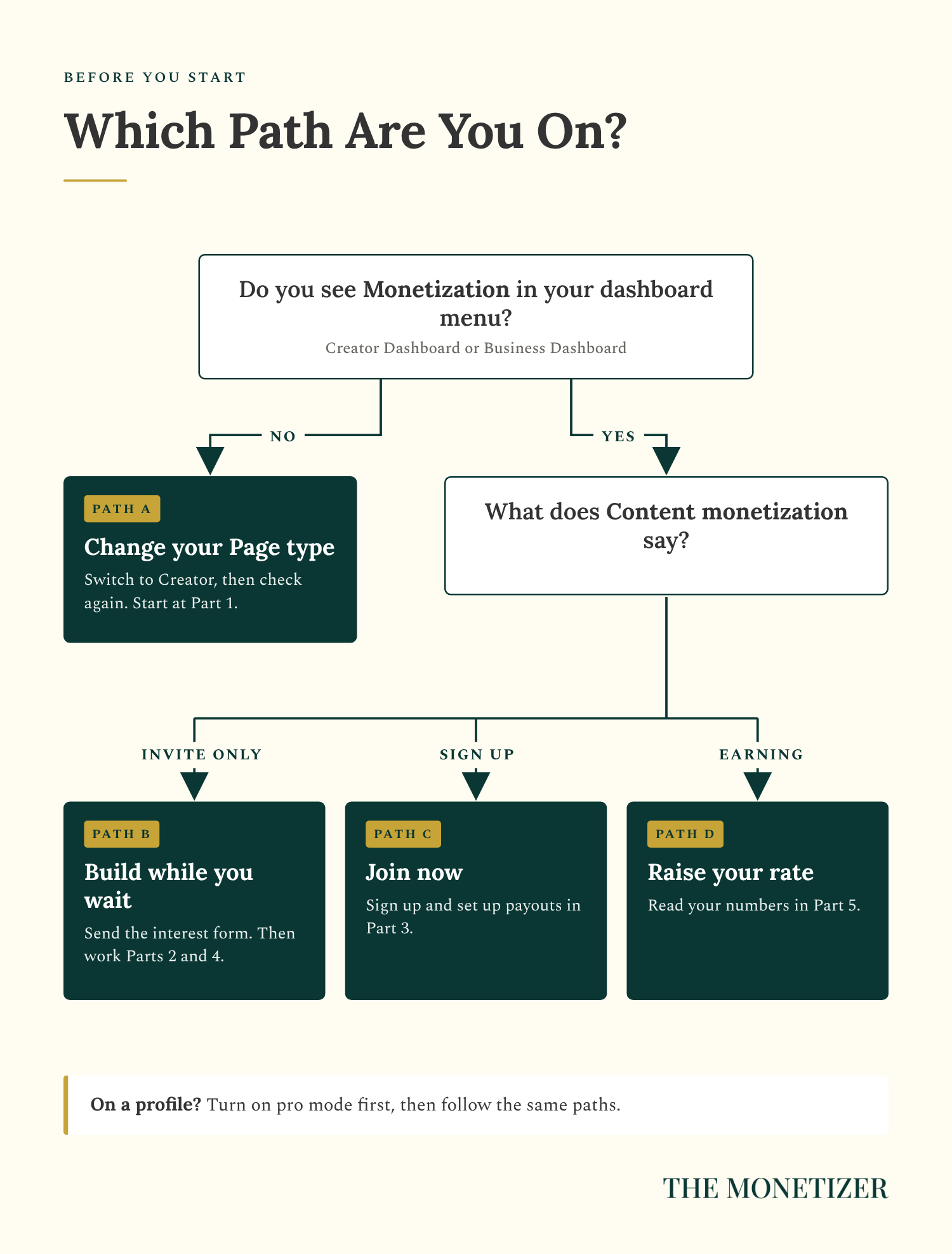
No Monetization in your menu: start with Part 1.
“Invite only”: work through Part 2, send the interest form, then spend your time in Part 4 until an invite arrives.
“Sign up” or “Get started”: you’re invited. Jump to Part 3.
Already earning: skip to Part 5 and work on your rate.
Part 1: Set Up Your Page So Facebook Can Pay It
Facebook split its old Professional dashboard into two versions: Creator Dashboard and Business Dashboard. They share most tools, but Meta notes that only some business users can see Monetization. If your Page is set up as a business, that tab may be missing completely.
Step 1: Open Your Dashboard and Find Monetization
Go to your Page and click Creator Dashboard or Business Dashboard. On a computer, you’ll also find it in the left menu of your Feed. Then look at the menu on the left side of the dashboard. This is one of my Pages, still set up as a business:
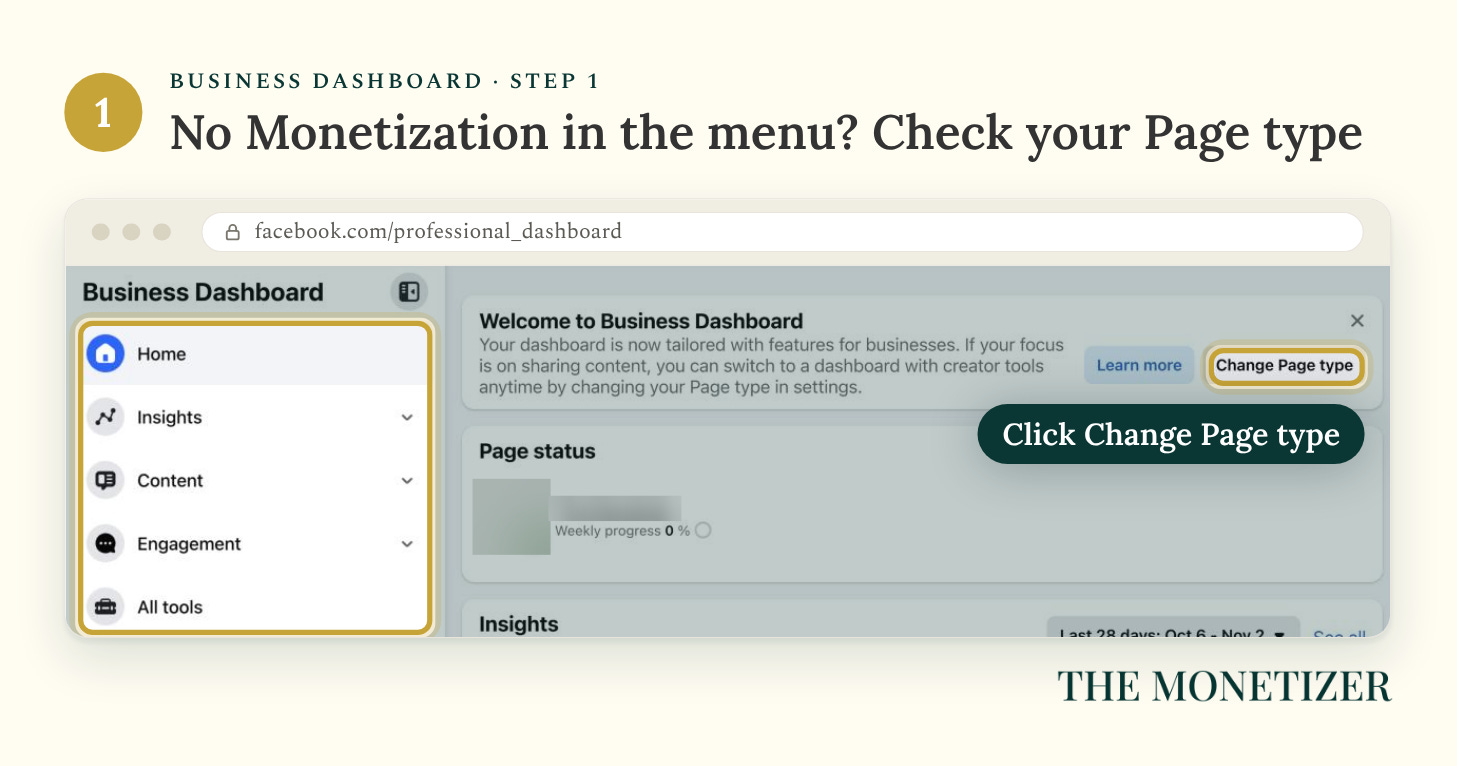
If Monetization is in your menu, skip to Part 2. If it isn’t, and you see a banner like this one, your Page type is the problem.
Step 2: Change Your Page Type to Creator
Click Change Page type on the banner. Facebook recommends the Creator type for creators, public figures, and businesses that want to monetize original content. Pick Creator, then click Confirm.
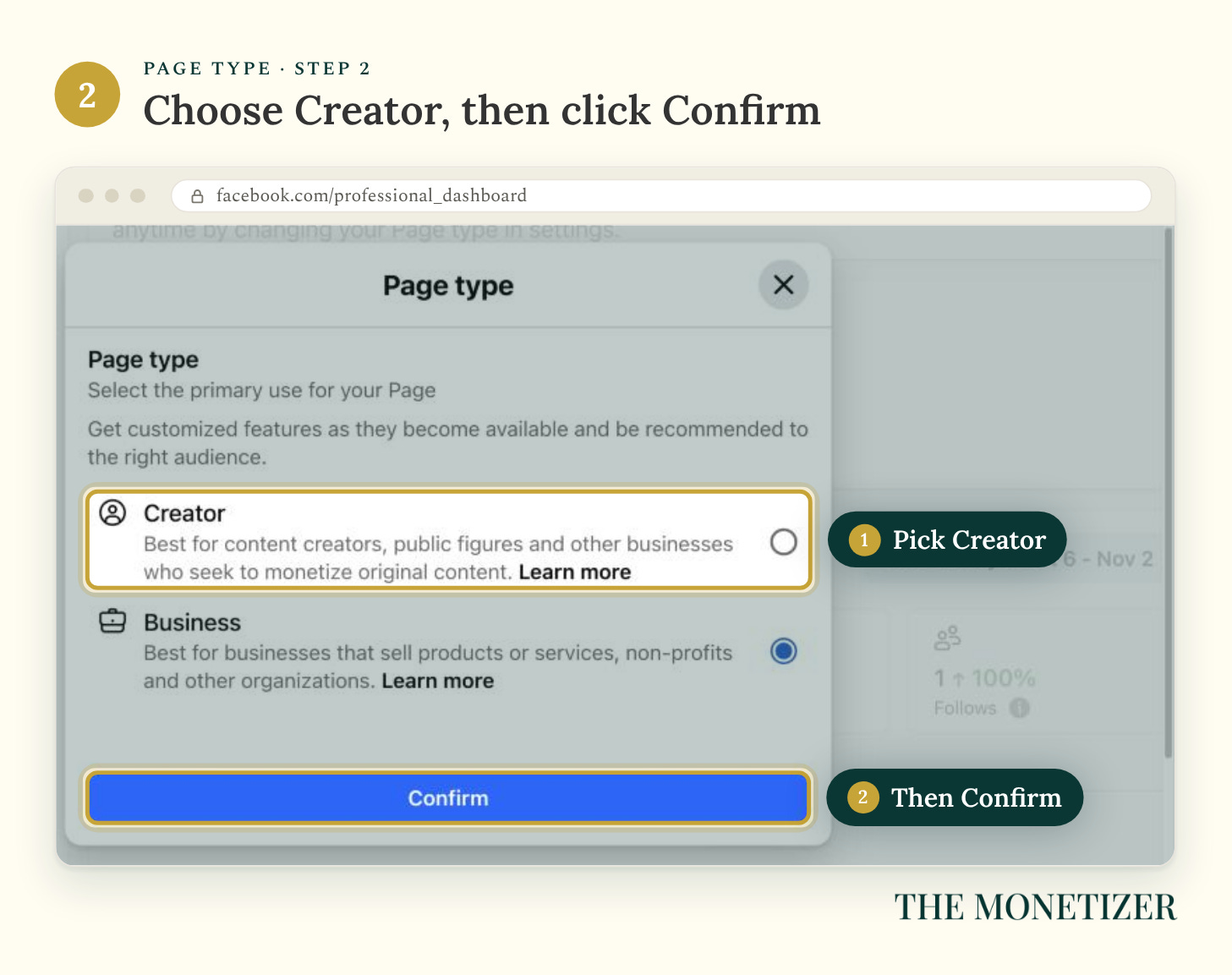
On your phone, open your dashboard and tap Settings below Other. Then tap Page setup, Page type, Creator, and Confirm. Facebook uses your Page type to decide which features you get and who your Page gets recommended to, and you can switch dashboards any time.
Using a Profile? Turn On Pro Mode First
Content Monetization works on personal profiles too, but only in pro mode. Go to your profile, click Options below your profile header, then click Turn on pro mode and confirm (Meta).
Two things change when you do. Anyone on Facebook can follow you and see your public posts, and your profile category switches to Digital creator by default. Your privacy settings for individual posts stay the same (Meta).
Part 2: Check Your Eligibility
Facebook gives you two places to check: your dashboard and Meta Business Suite. Check both, because they show different details.
Step 3: Open Monetization in Your Dashboard
In your dashboard, click Monetization, then Overview. If your Page isn’t ready, the top of the screen says Not yet eligible.
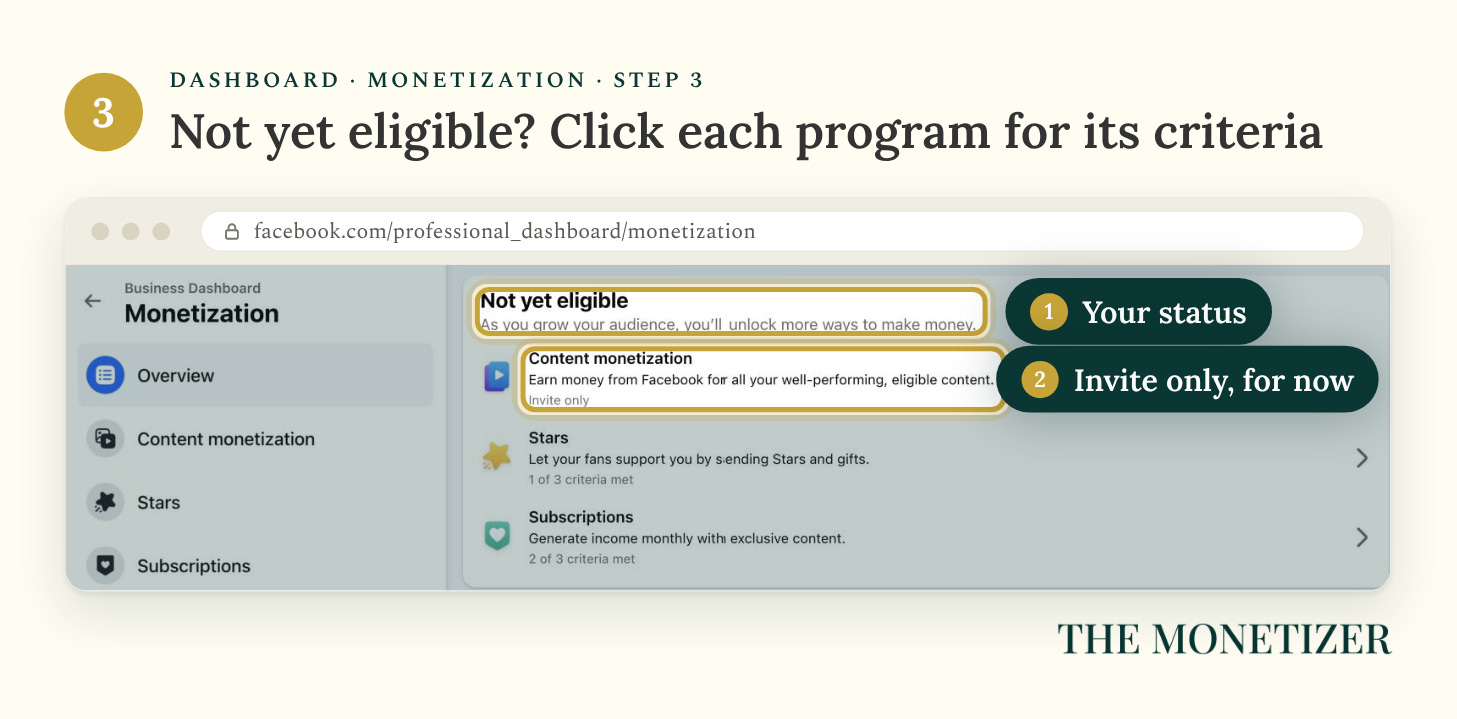
Every program shows its own status. On this Page, Stars says “1 of 3 criteria met” and Subscriptions says “2 of 3.” Content monetization just says Invite only.
Step 4: Open Content Monetization
Click Content monetization. If you haven’t been invited, you’ll land here:
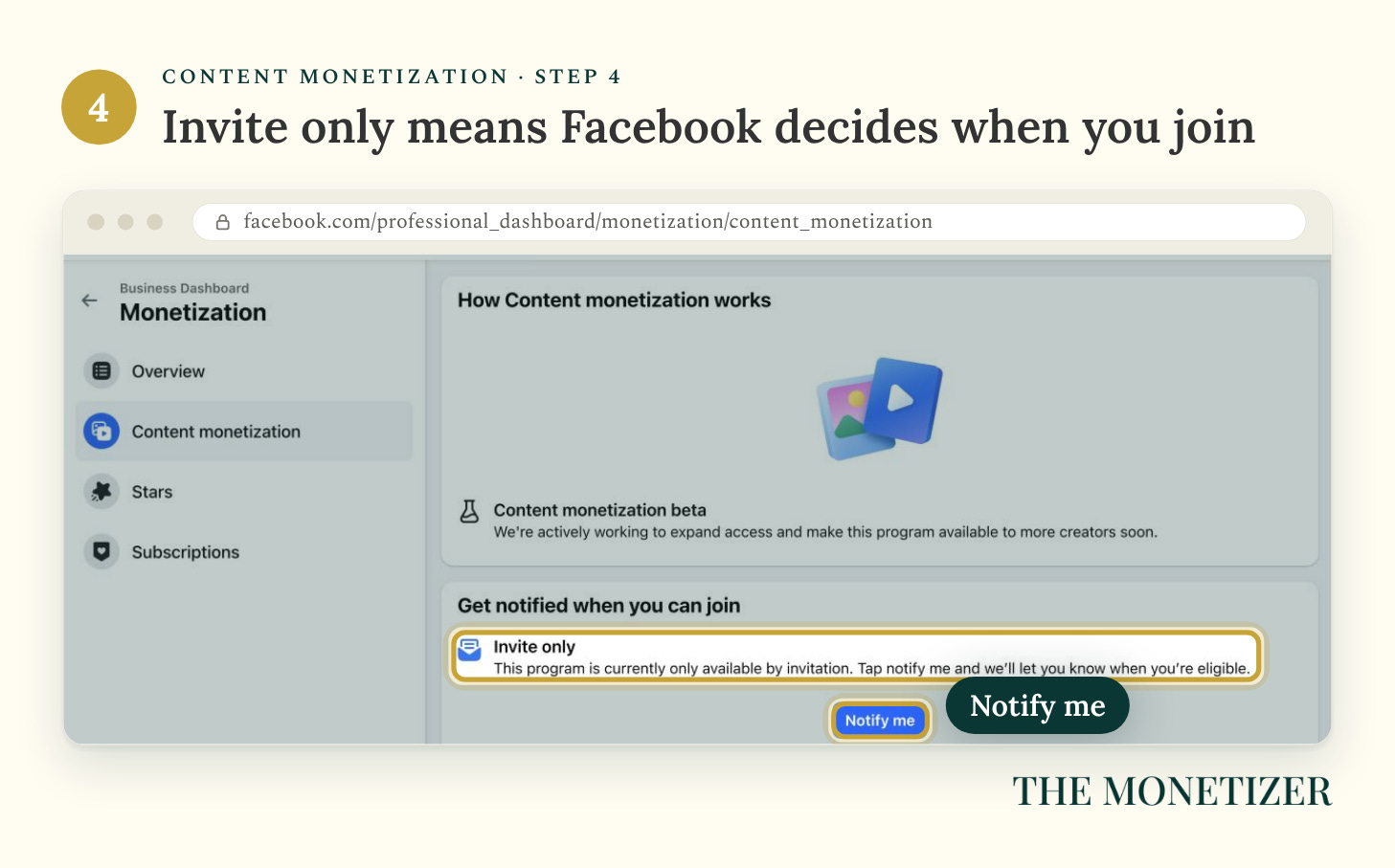
Tap Notify me to get an alert when you become eligible. Then check the same Page in Meta Business Suite.
Step 5: Check Your Status in Meta Business Suite
On a computer, open Meta Business Suite and click Monetization in the left menu. If you don’t see it, go to All tools and find Monetization under Sell products and services.
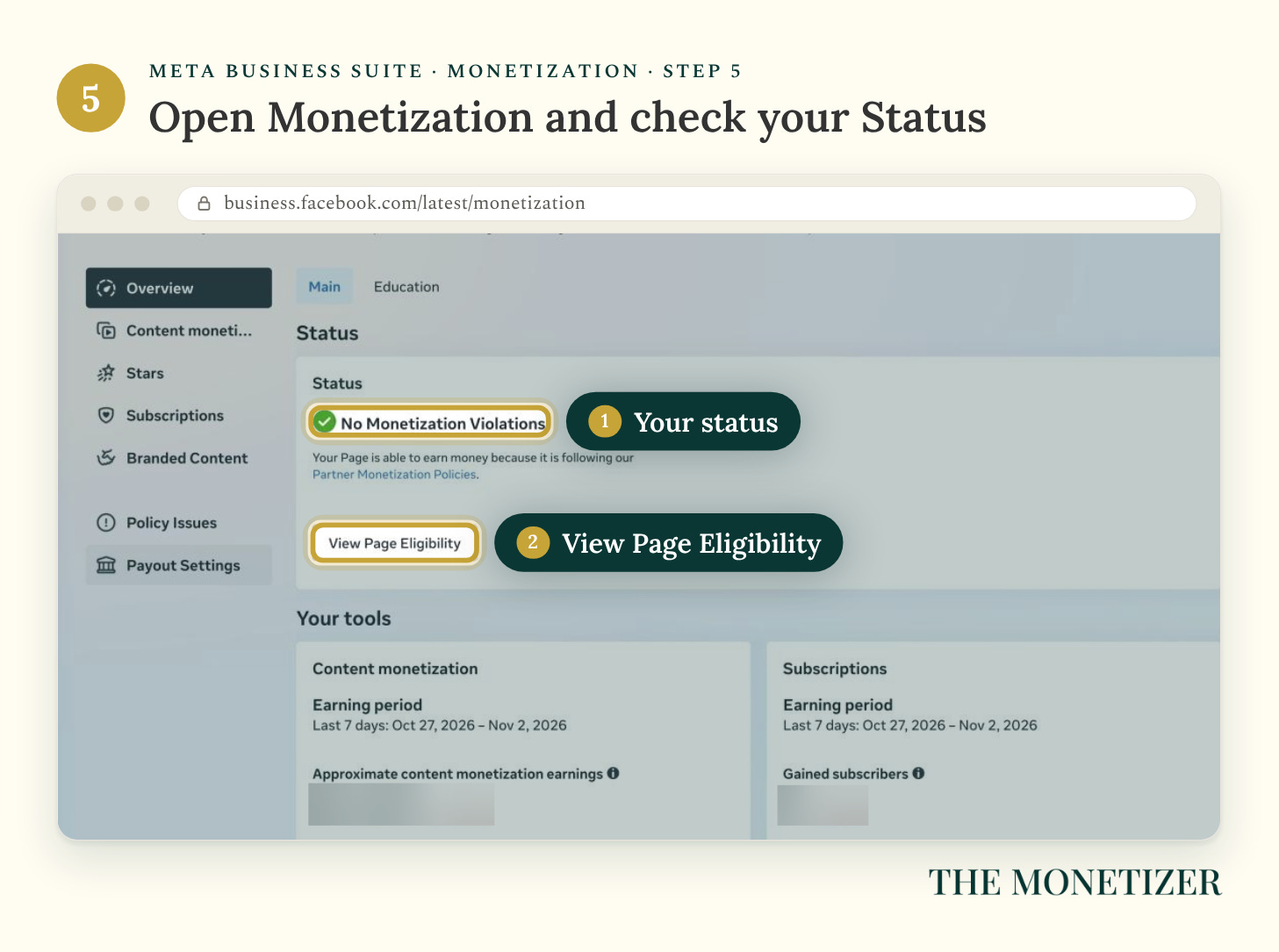
The Status box tells you whether your Page has any monetization violations. Click View Page Eligibility next.
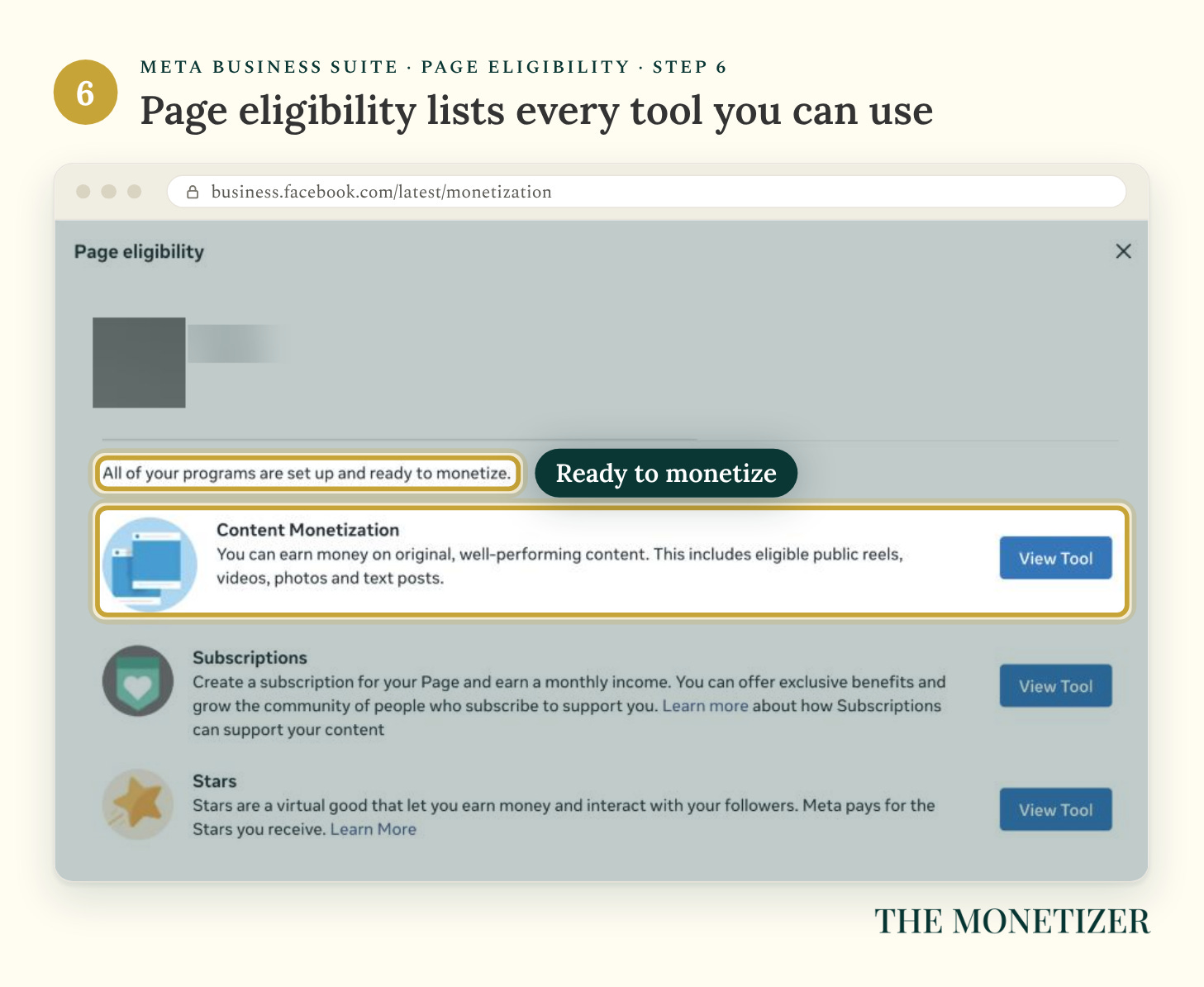
Step 6: Read Your Page Eligibility
This panel lists the tools your Page can use. Programs you can join appear at the top with a button to set them up. Anything you can’t join yet shows up under Other monetization programs.
Step 7: Clear Any Policy Issues
Click Policy Issues in the Monetization menu. Recent Violations lists anything hurting your eligibility, and Monetization Tools breaks your status down tool by tool.
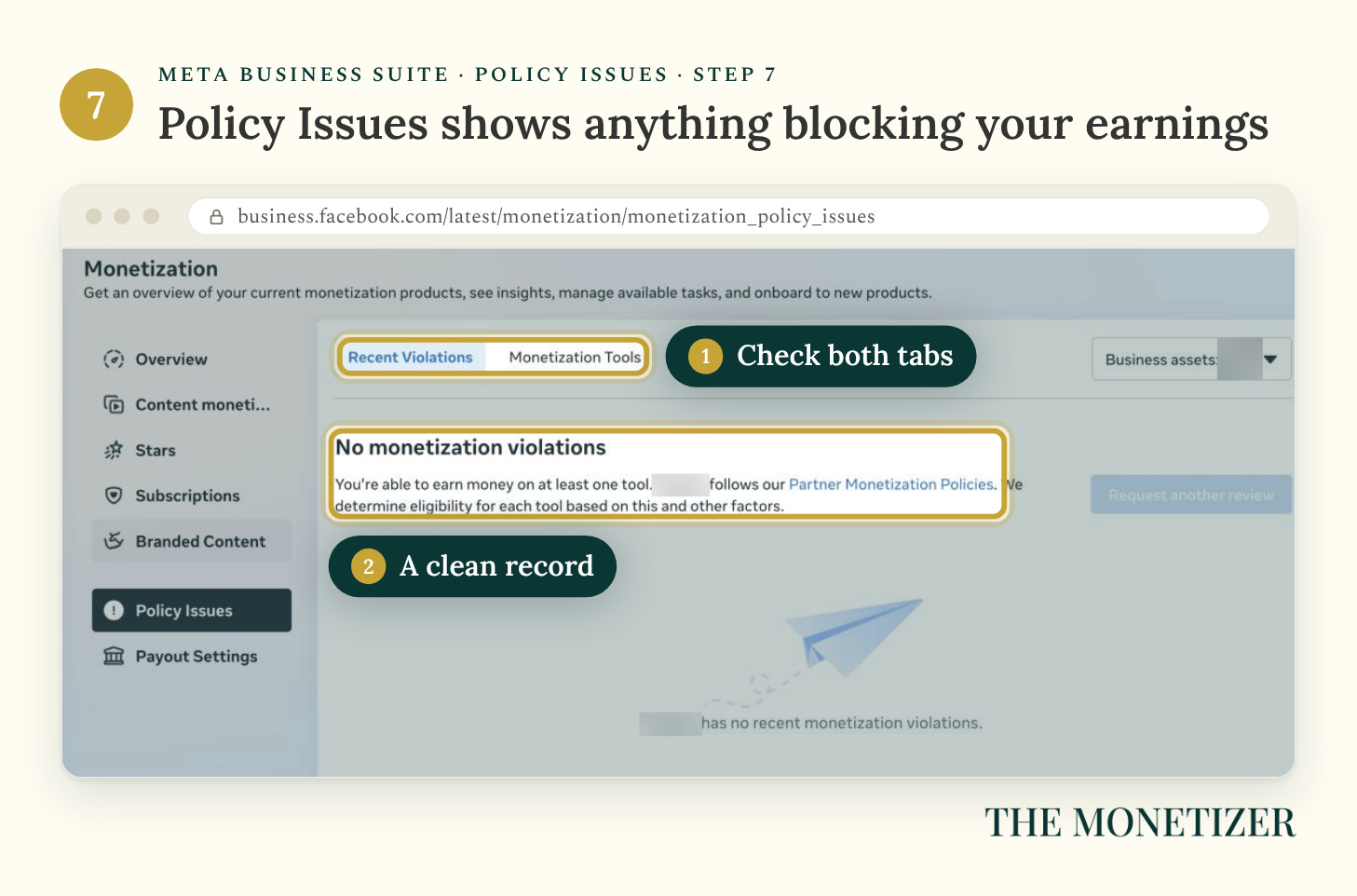
If Facebook restricted your Page or a post by mistake, you can appeal to its review team.
“Invite Only”? What the Interest Form Really Does
This is where most people get stuck. Content Monetization is invite-only, and if you haven’t been invited, Facebook offers an interest form. Meta is blunt about what it is: “This is not an application”, and it doesn’t guarantee an invite. Send it anyway.
Real invites only come through Facebook’s own channels: the Facebook app, email, Meta Business Suite, and your dashboard. If you’re not sure an invite is legit, look for it in the monetization section of those tools. Meta also warns against clicking suspicious links, including ones sent in Messenger. Its approved agency partners can send invitations too, as part of Creator Fast Track.
Facebook doesn’t publish what earns an invite. While you wait, you control three things: a Page set to Creator, a clean Policy Issues screen, and a steady run of original public posts. That’s Part 4.
Part 3: Join Content Monetization and Set Up Payouts
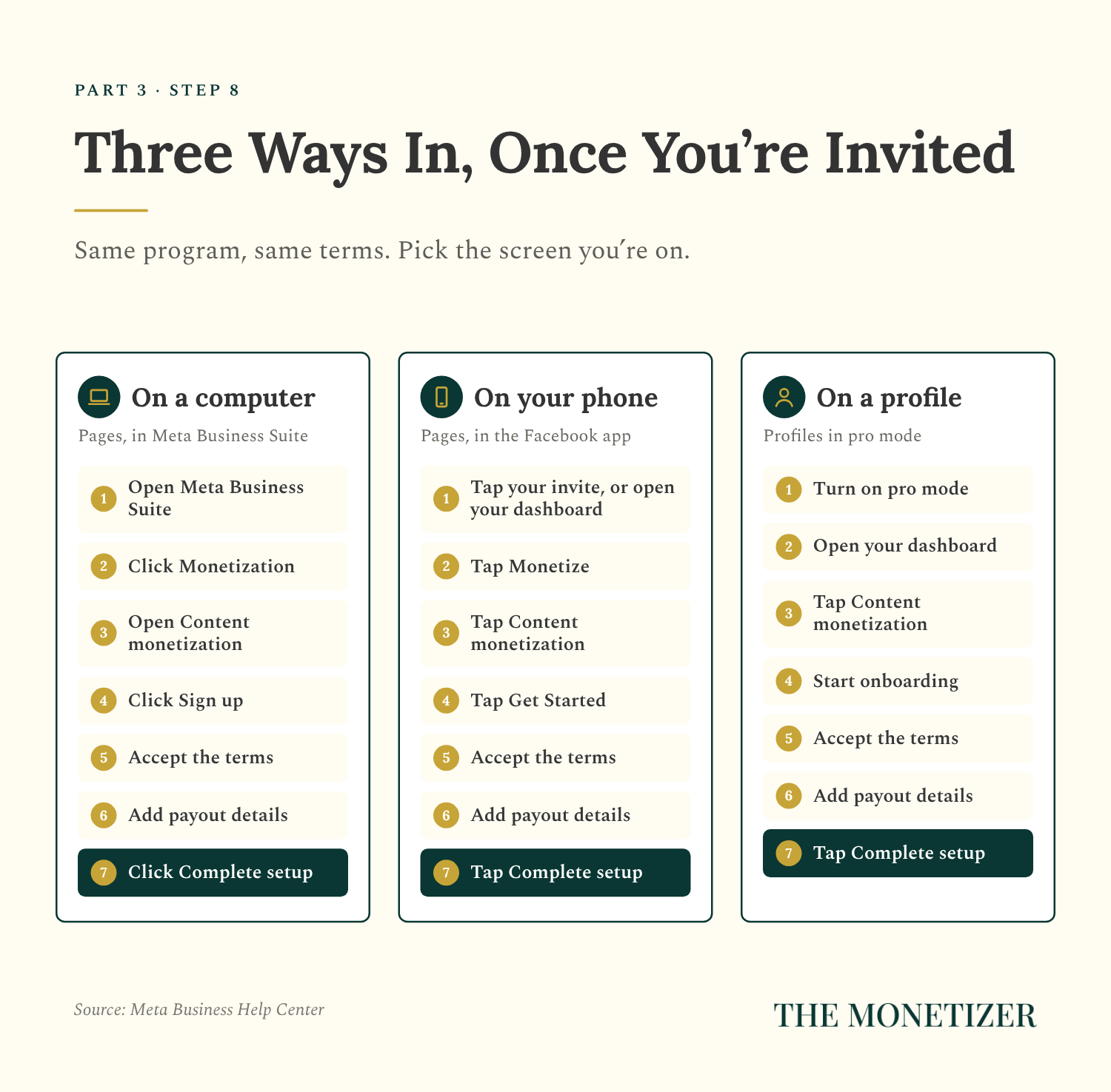
Step 8: Accept Your Invite
When your invite arrives, you’ll get a way to sign up instead of the invite-only notice. Where you go depends on the screen you’re on (Meta):
On a computer: In Meta Business Suite, go to Monetization, then Content monetization, and click Sign up. Accept the terms, fill in your payout details, and click Complete setup.
On your phone: Tap the invite notification, or open your dashboard and tap Monetize, then Content monetization. Tap Get Started, accept the terms, add your payout details, and tap Complete setup.
On a profile: Turn on pro mode, open your dashboard, tap Content monetization, and follow the same steps.
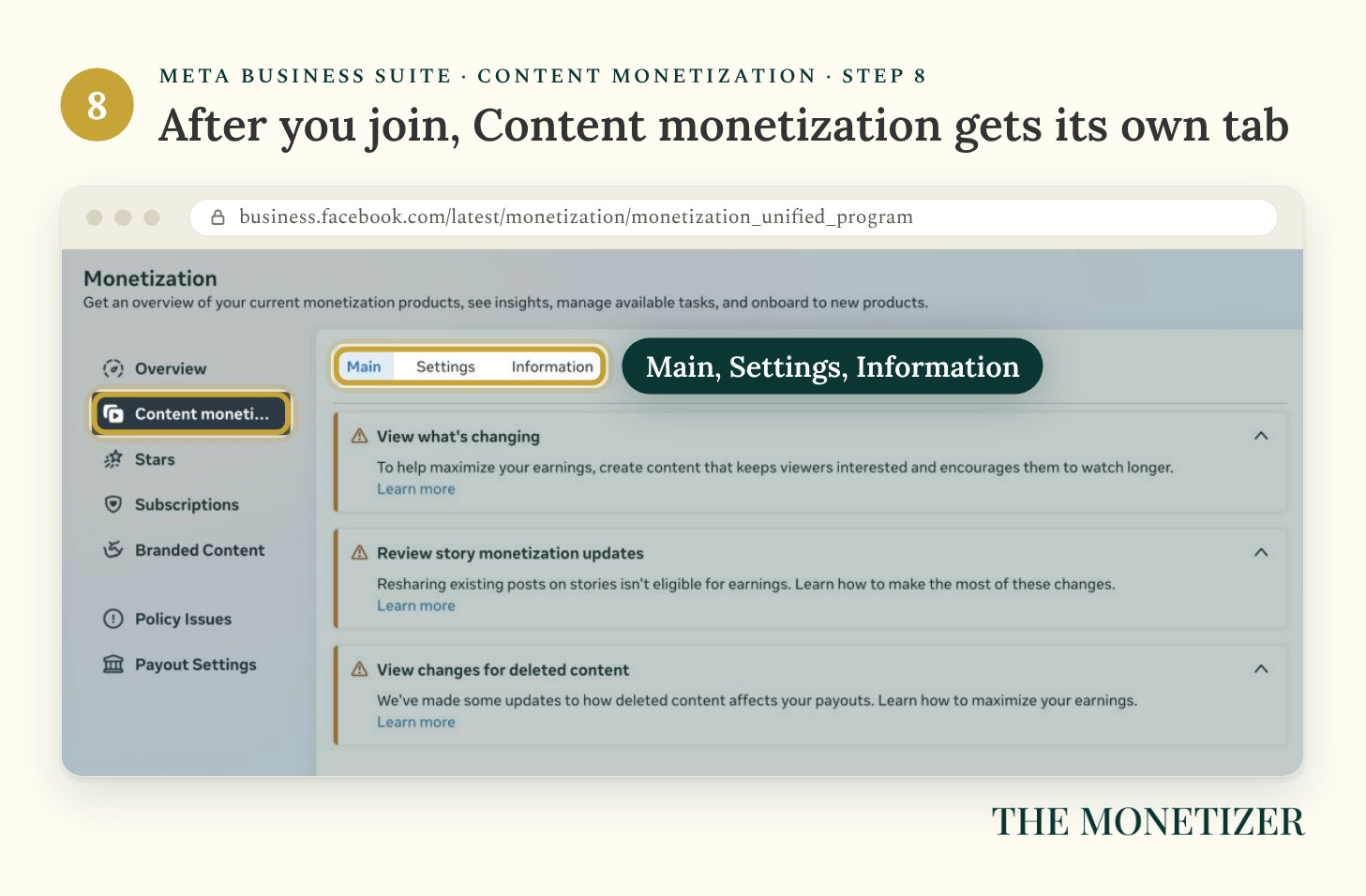
Once you’re in, Content monetization gets its own tab in Meta Business Suite. It’s also where Facebook announces program changes:
Step 9: Set Up Your Payout Account the Day You Join
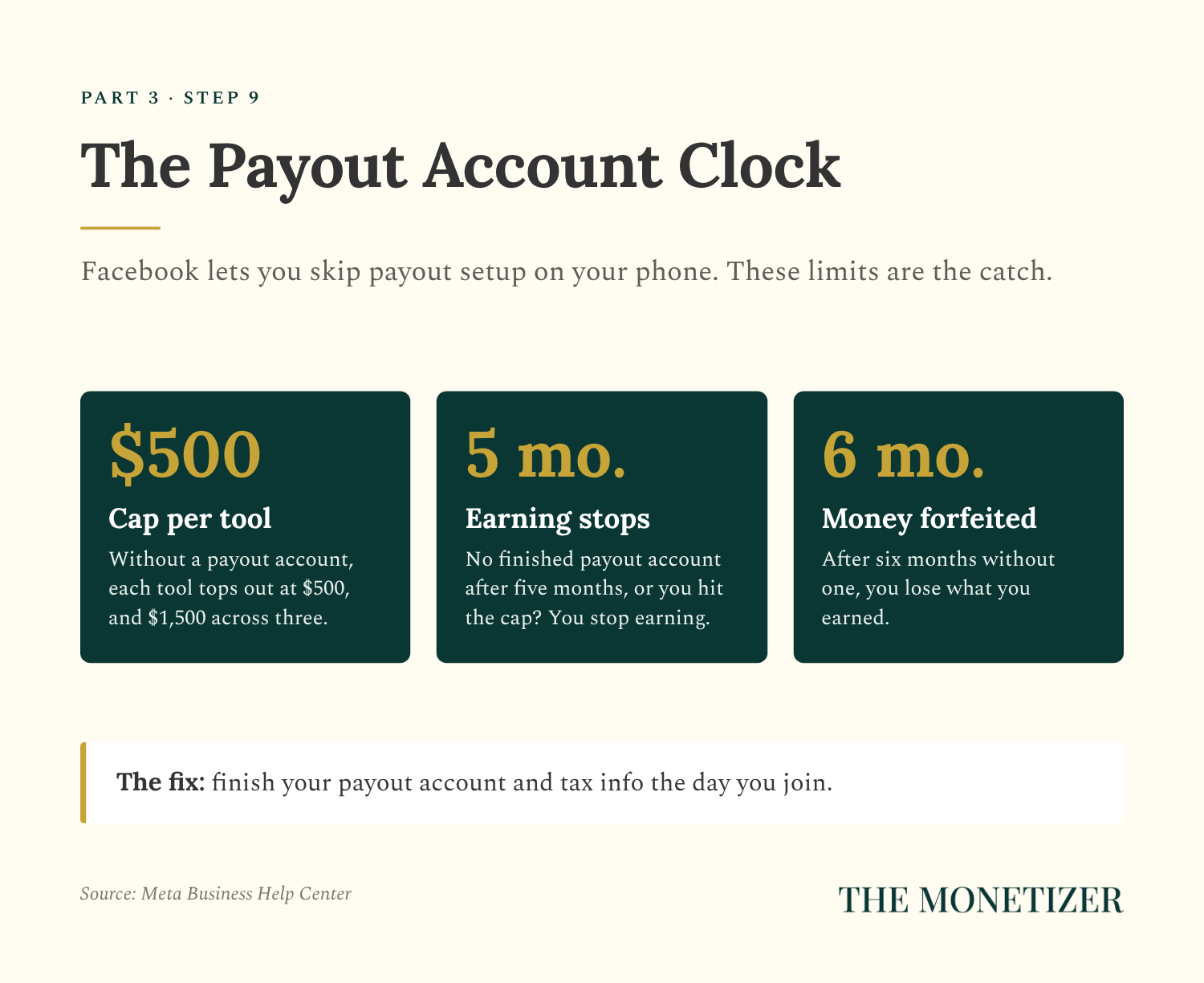
On your phone, Facebook lets you skip the payout account and start earning right away. That convenience comes with a clock (Meta):
Without a payout account, each monetization tool tops out at $500, with a $1,500 maximum across three tools.
If you haven’t finished setup within five months, or you hit that cap, you stop earning.
After six months without a payout account, you forfeit what you earned.
Setup asks for four things: your legal name, date of birth, and country; your business type (an individual, or a business like an LLC); a payout method; and your tax info. You can get paid by signing in to your bank, linking a bank account manually, connecting PayPal, or adding a debit card. The name on your tax ID has to match the name you give Facebook, or your payouts won’t finalize.
Timing matters too. Changing your payout method triggers a five-day hold, and Meta says to make changes at least 10 days before a payment date, or your money moves to the next cycle. In the US, a brand-new tax ID can take up to 60 days to verify.
There are no screenshots for this step. Payout screens are full of bank and tax details, and you don’t need mine to fill in yours.
Step 10: Keep Ads Turned On
In your dashboard, open Content monetization, scroll to Settings, and click Ads settings. Make sure Show ads on my content is on.
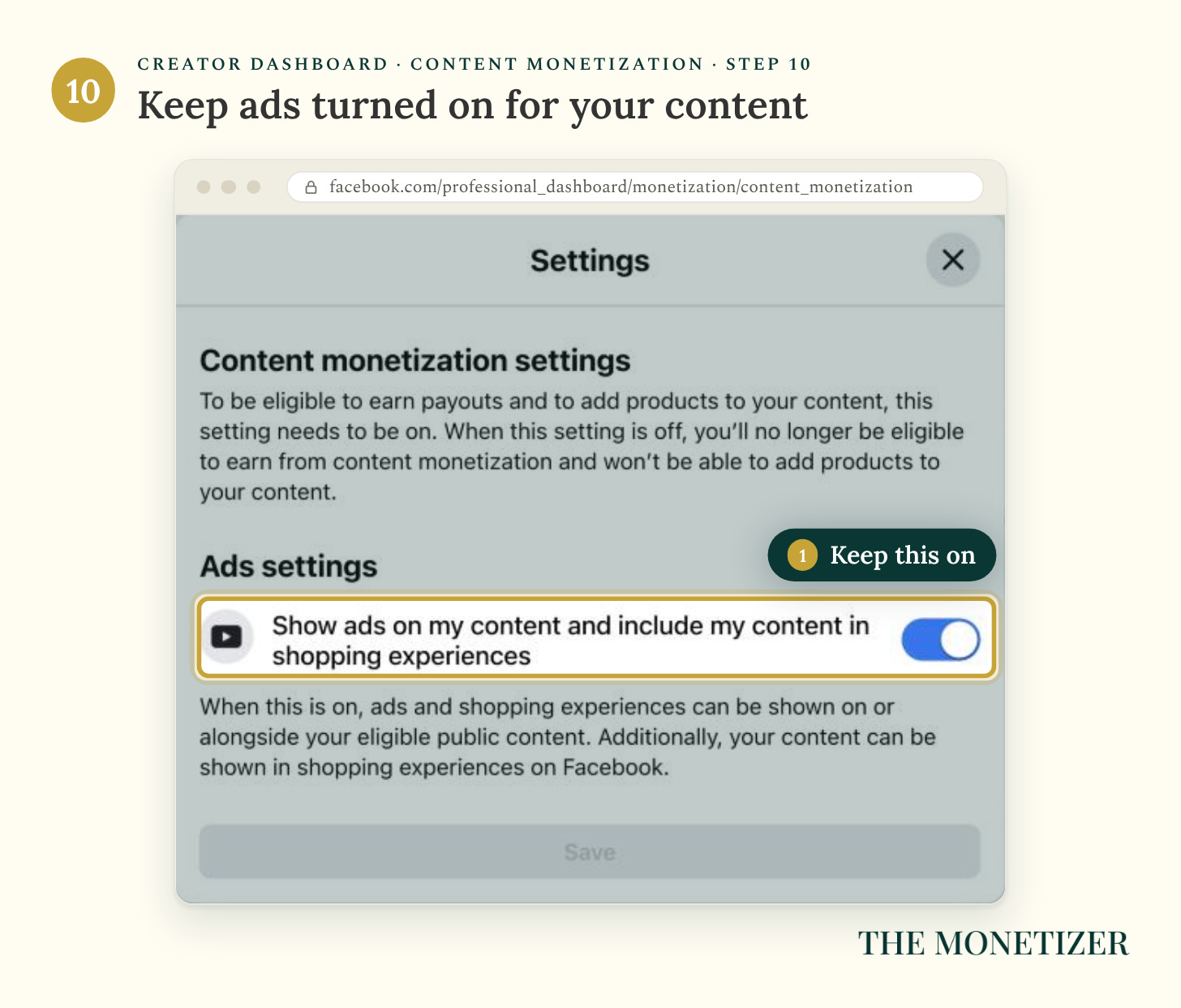
Facebook spells out the stakes right in the panel: with this setting off, you’re not eligible to earn from Content Monetization at all.
Part 4: Post What Facebook Actually Pays For
Getting in is the part Facebook controls. Earning is the part you control. Your pay is based on factors like qualified views and watch time on eligible public content, so every post either qualifies or it doesn’t.
What Earns
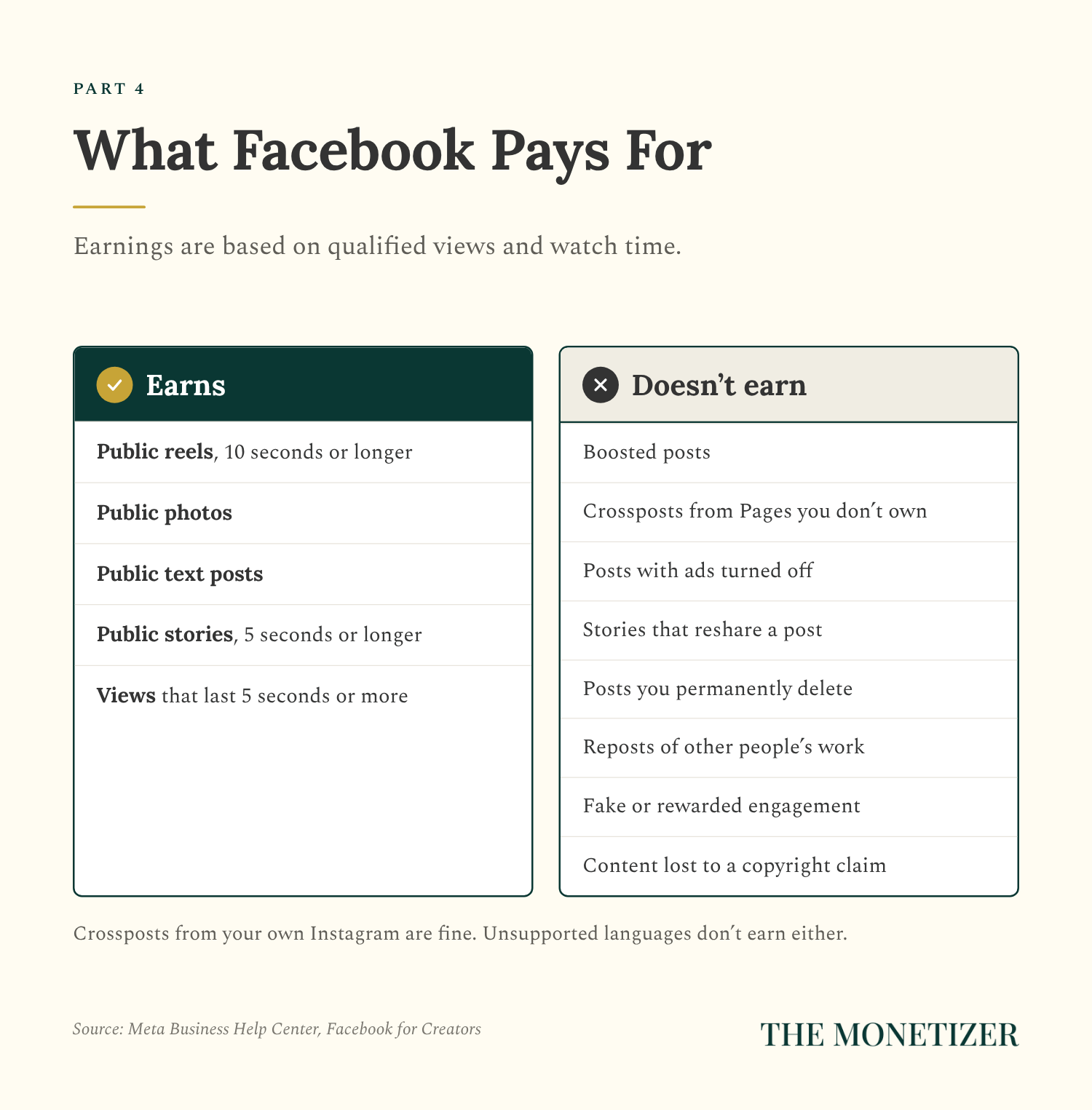
Public reels, photos, stories, and text posts can all earn. Two minimums apply: reels have to run at least 10 seconds, and stories at least five. Any view under five seconds doesn’t count.
What Doesn’t Earn
Facebook lists these as content that may not earn, even after you’re in the program:
Content where a copyright claim was settled in someone else’s favor
Posts in a language the program doesn’t support
Content crossposted from a Page you don’t own or manage (crossposts from your own Instagram are fine)
Boosted posts
Posts you permanently delete, which can also lose credit for engagement they already earned
Posts where you turned ads off
Anything that collects or rewards fake engagement
Stories that reshare an existing post
Watch that boosted-post rule if you run ads. Boosting can make a post ineligible for performance payouts, so don’t boost the posts you’re counting on to earn.
Original Content Is the Whole Game
Meta started cracking down on unoriginal content in July 2025. Accounts that repeatedly repost other people’s videos, photos, or text lose access to monetization for a period of time, and everything they share gets less reach. Stitching clips together or adding your watermark to someone else’s work doesn’t make it yours. Commentary, voiceover, and real creative editing do.
You can share the same content across your own Pages and profiles. Meta also says captions with no links, minimal capital letters, and five hashtags or fewer tend to perform best.
Facebook grades you on originality, too. In your dashboard, open Content monetization and click Your earning potential. You’ll see the factors behind your earnings for each format, with content originality right there in the list.
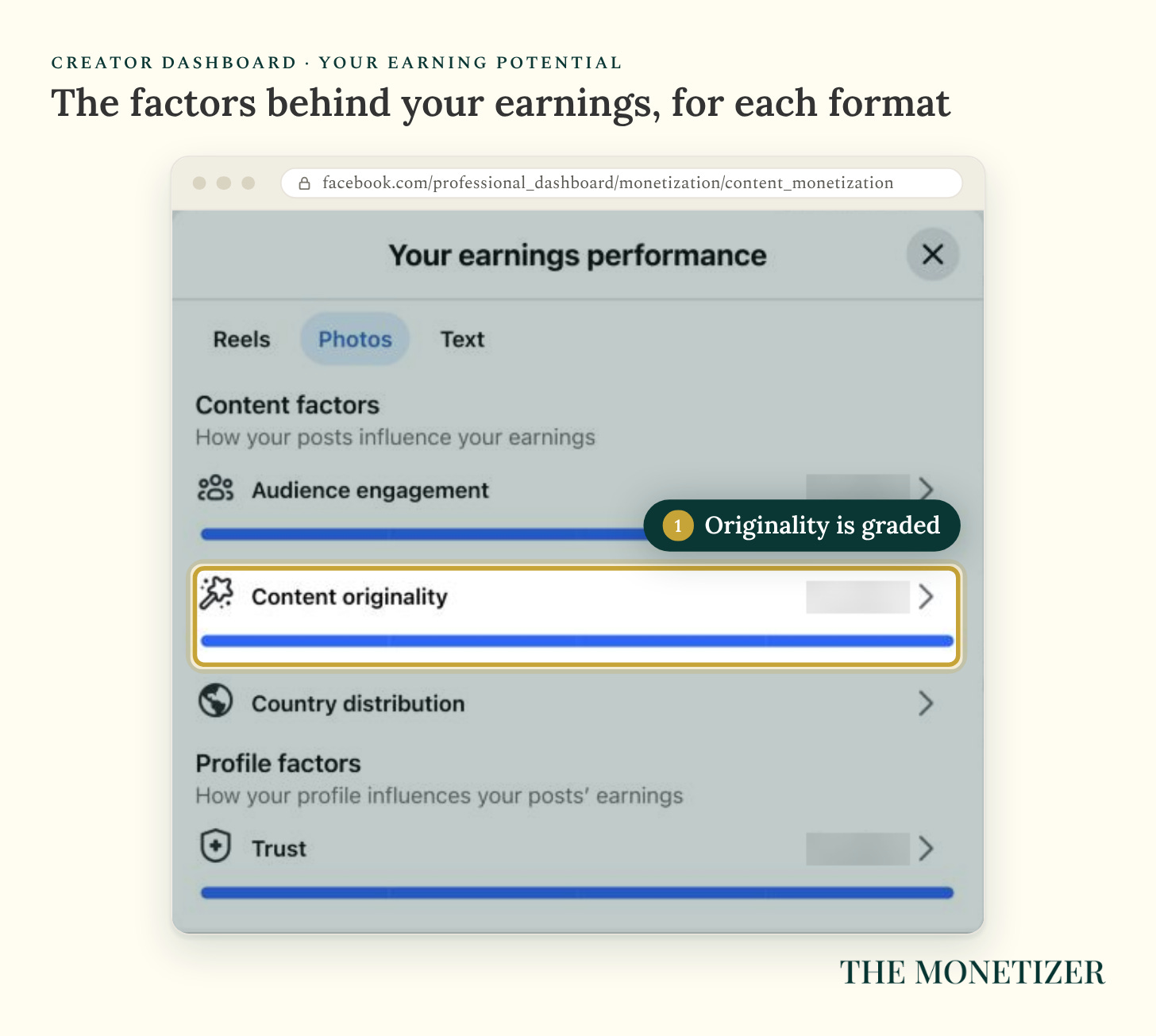
I don’t use engagement bait, and Meta’s own advice backs that up: skip prompts that push people to watch until the end unless the payoff is real (Meta).
Don’t Sleep on Photo Posts
Reels get most of the attention, and they did take about 60% of Facebook’s creator payouts in 2025. But stories, photos, and text posts split the other 40%. Reels can be the fastest way to earn on Facebook. They’re rarely the easiest. A strong original photo with a caption people actually read takes a fraction of the production time, and it’s eligible to earn the same way. Your audience might behave differently, which is why Part 5 shows you how to check.
[LEVI: Approve or cut. Your largest Page’s Earnings report for Oct 6 to Nov 2, 2026 shows photos earned about $19,000 of roughly $19,300 in Content Monetization, and reels earned about $185. Suggested line: “On my biggest Page last month, photos earned about 98% of my Content Monetization money. Reels earned about 1%.” It’s the strongest proof in this guide, so publish it only if you’re comfortable sharing the split.]
Part 5: Read Your Earnings Like an Operator
Two numbers explain most of your Facebook income. Qualified views are the views that can earn. Your earnings rate is roughly what you make per 1,000 of them (Meta). You’ll find both below, along with the rest of your money.
Step 11: Open Your Earnings
In Meta Business Suite, open Monetization, then Content monetization, and click View earnings.
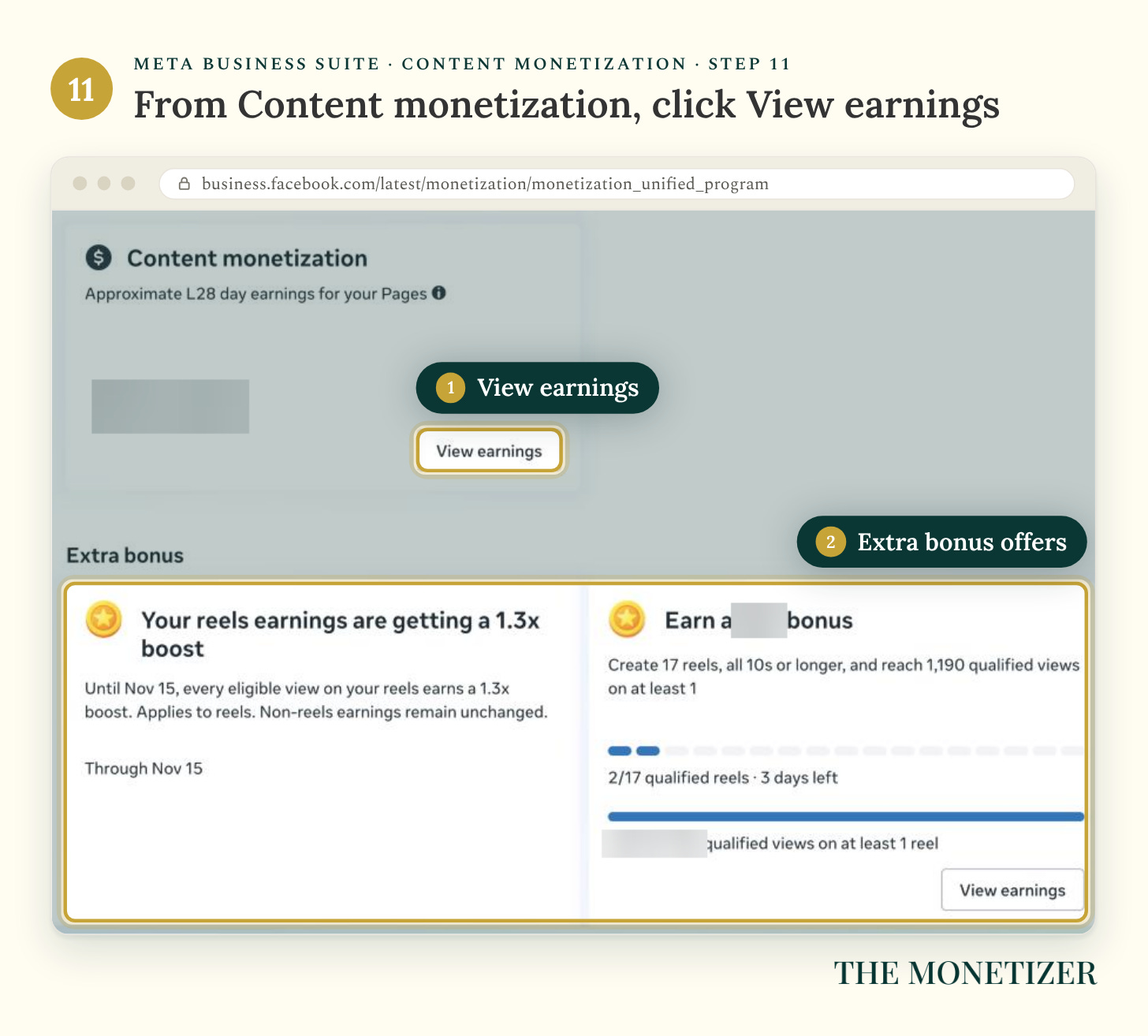
That opens Insights, then Earnings. The Overview tab shows approximate earnings across your tools for whatever dates you pick.
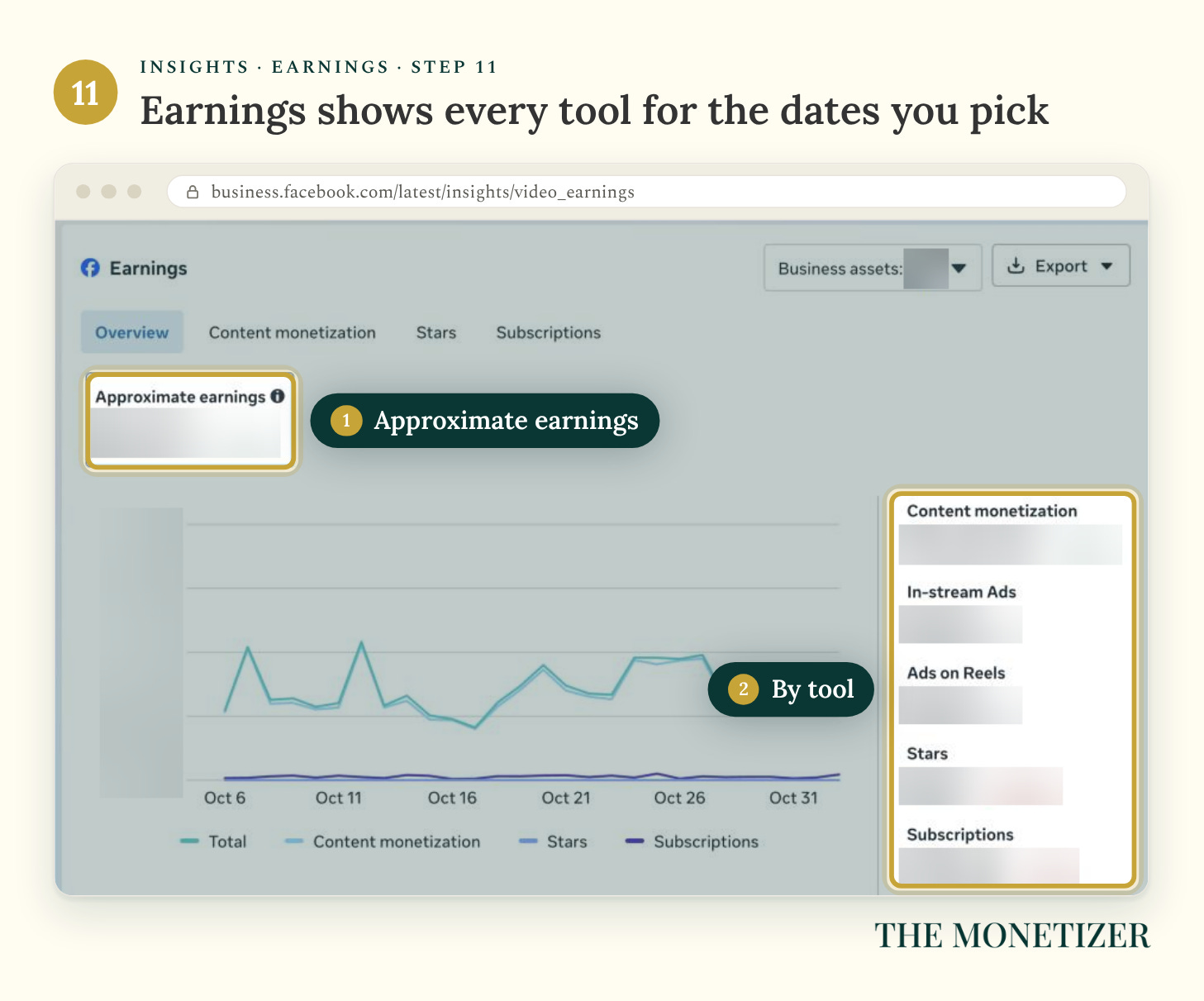
Treat these numbers as estimates. Your final payout can land higher or lower after Facebook reviews your earnings against its policies.
Step 12: Break Your Earnings Down by Format
Click the Content monetization tab. Now your earnings split into reels, photos, stories, text, and extra bonuses.
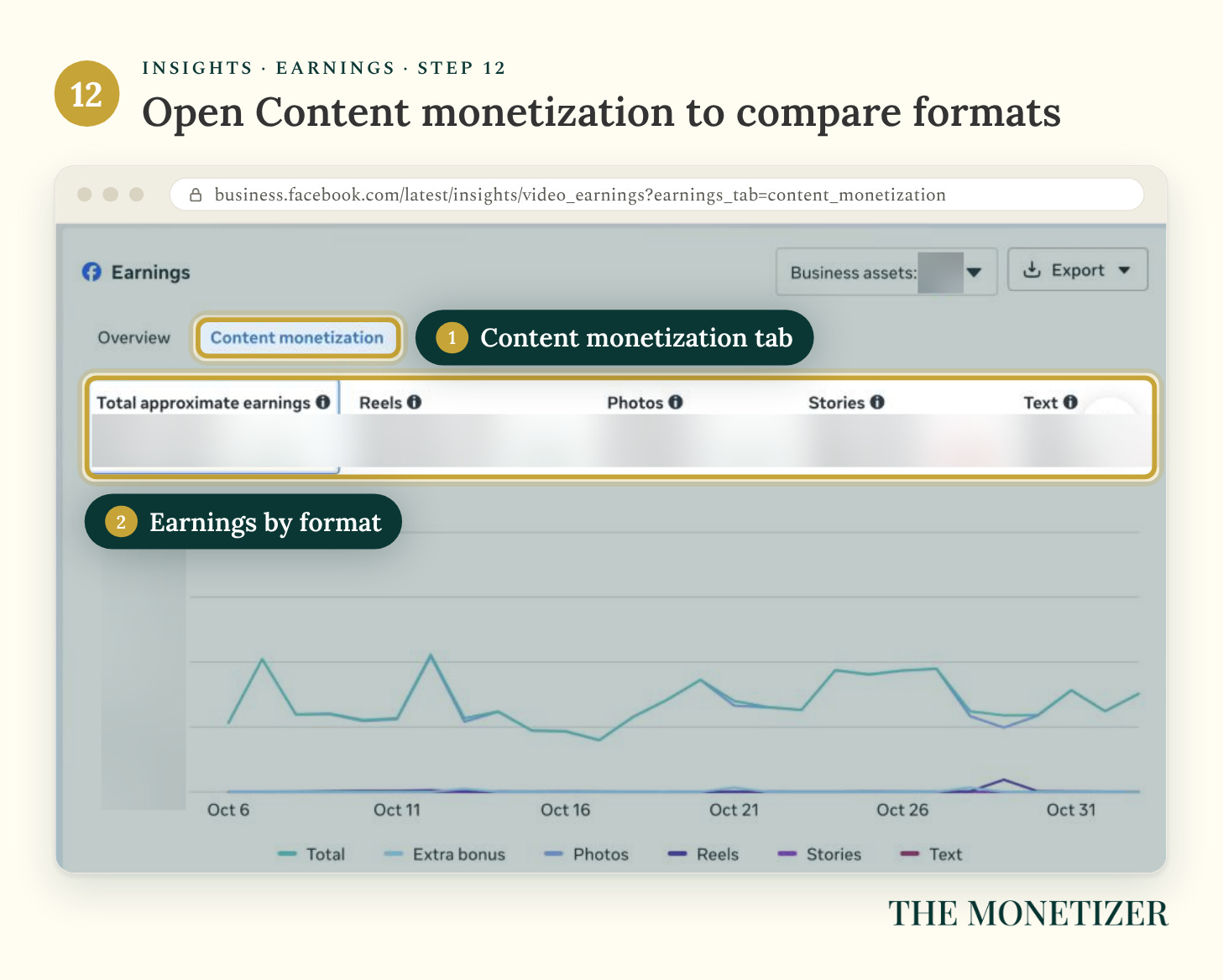
This is the most useful screen in the whole setup. Without it, you’re guessing which format pays you best.
Step 13: Check Your Earnings Rate and Qualified Views
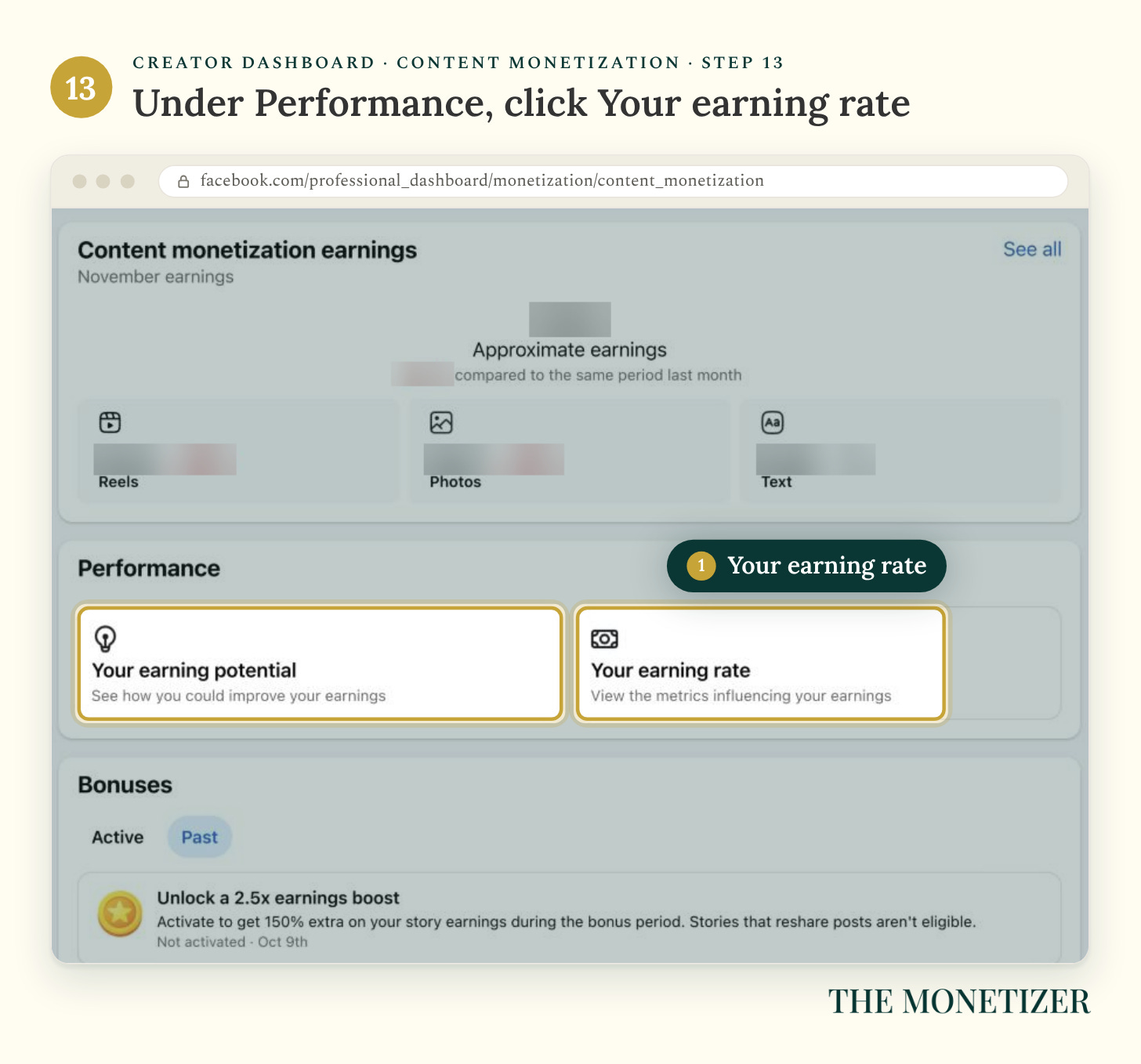
In your dashboard, open Content monetization and find Performance. Click Your earning rate.
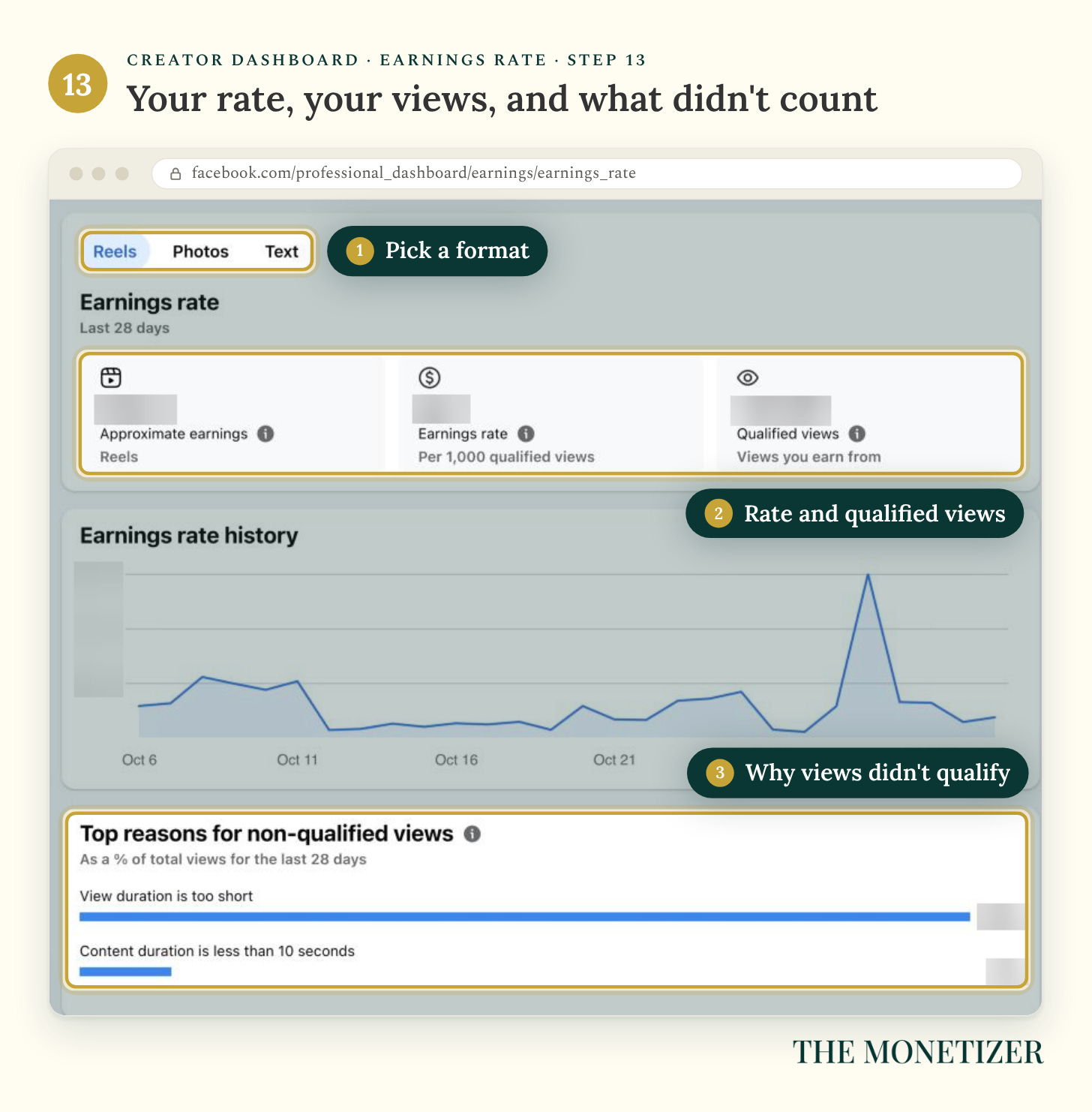
Pick a format at the top: Reels, Photos, or Text. You’ll see your approximate earnings, your earnings rate per 1,000 qualified views, your qualified views, a 28-day history, and the top reasons views didn’t qualify.
[LEVI: Optional. Your largest Page’s earnings rate for Oct 6 to Nov 2, 2026 was $0.21 per 1,000 qualified views on photos and $0.11 on reels. If you’re comfortable sharing it, add: “On my biggest Page, photos pay about $0.21 per 1,000 qualified views. Reels pay about $0.11.”]
Views Not Qualifying? Read the Reasons List
That reasons list is your to-do list. Meta names 12 reasons a view might not qualify. Here’s what each one means, and what to do about it:
Watch time is less than 5 seconds. The viewer left before five seconds. Hook people in the first second.
Content duration is less than 10 seconds. The reel is too short to earn. Make reels at least 10 seconds long.
Repeat views. One person viewed more than once in a session. Nothing to fix. It’s normal.
Activity from restricted users. Views came in while a restriction blocked earning. Check Policy Issues.
You turned off monetization. Ads were off when the views came in. Turn ads back on (Step 10).
Monetization disabled on your Page. A Page issue paused your earnings. Check Policy Issues (Step 7).
Payout account not set up. Earnings paused until setup was done. Finish your payout account (Step 9).
Content doesn’t meet our policies. The post was flagged. Read the Content Monetization Policies.
Crossposted content from another person or Page. Views came from a crosspost of a Page you don’t manage. Only crosspost from your own Pages or Instagram.
Non-public content. The post wasn’t public. Post publicly.
Earnings on hold due to copyright review. A copyright claim is under review. Post content you own or have rights to.
Other. A mix of reasons, or something else. Watch the trend week to week.
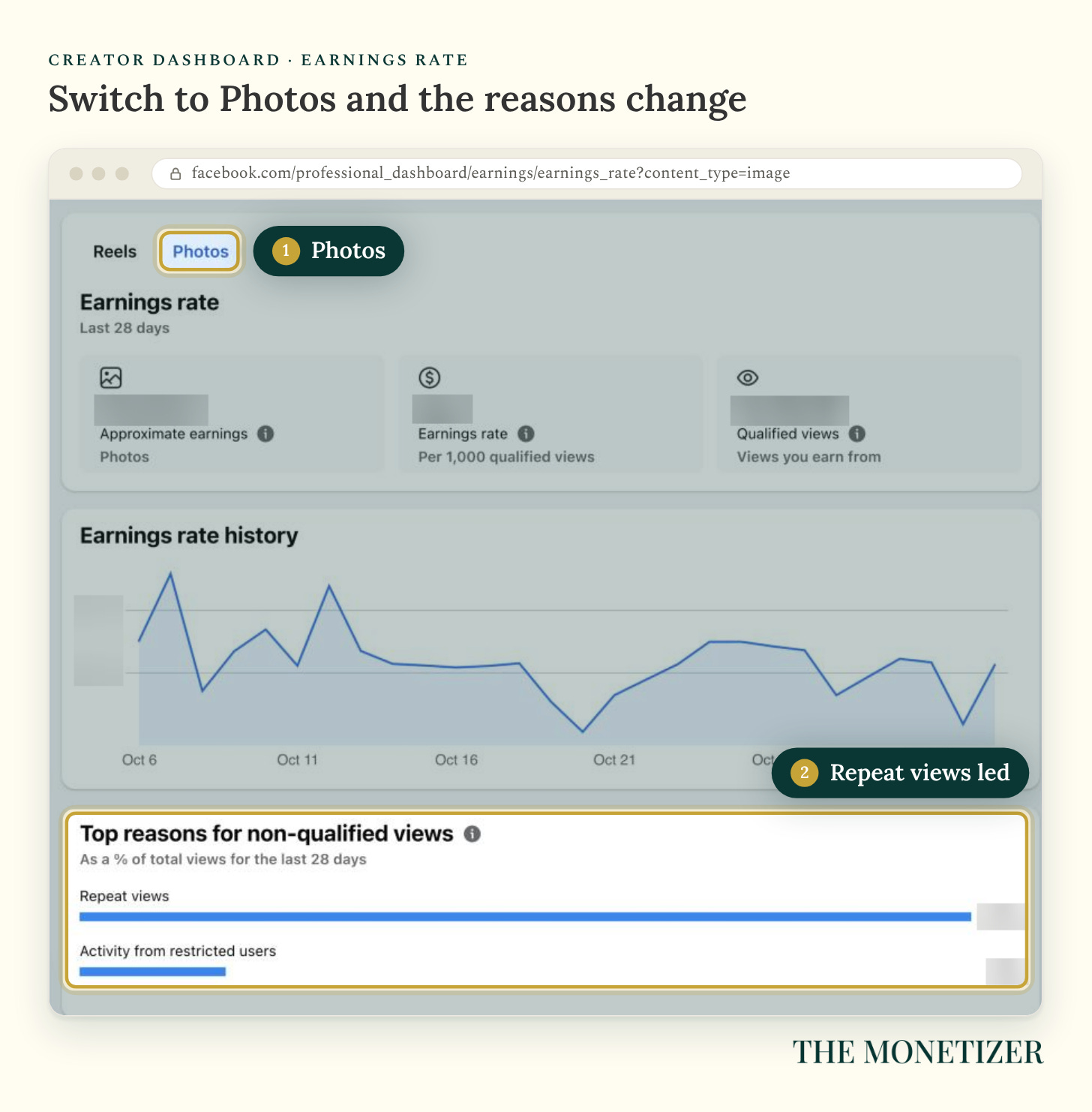
Different formats fail for different reasons. Switch the tab to Photos, and the list changes:
How Many Views It Takes to Make Money
Your earnings come to roughly your qualified views divided by 1,000, times your earnings rate. Facebook doesn’t publish a standard rate, and yours will move with your format, your audience, and the month.
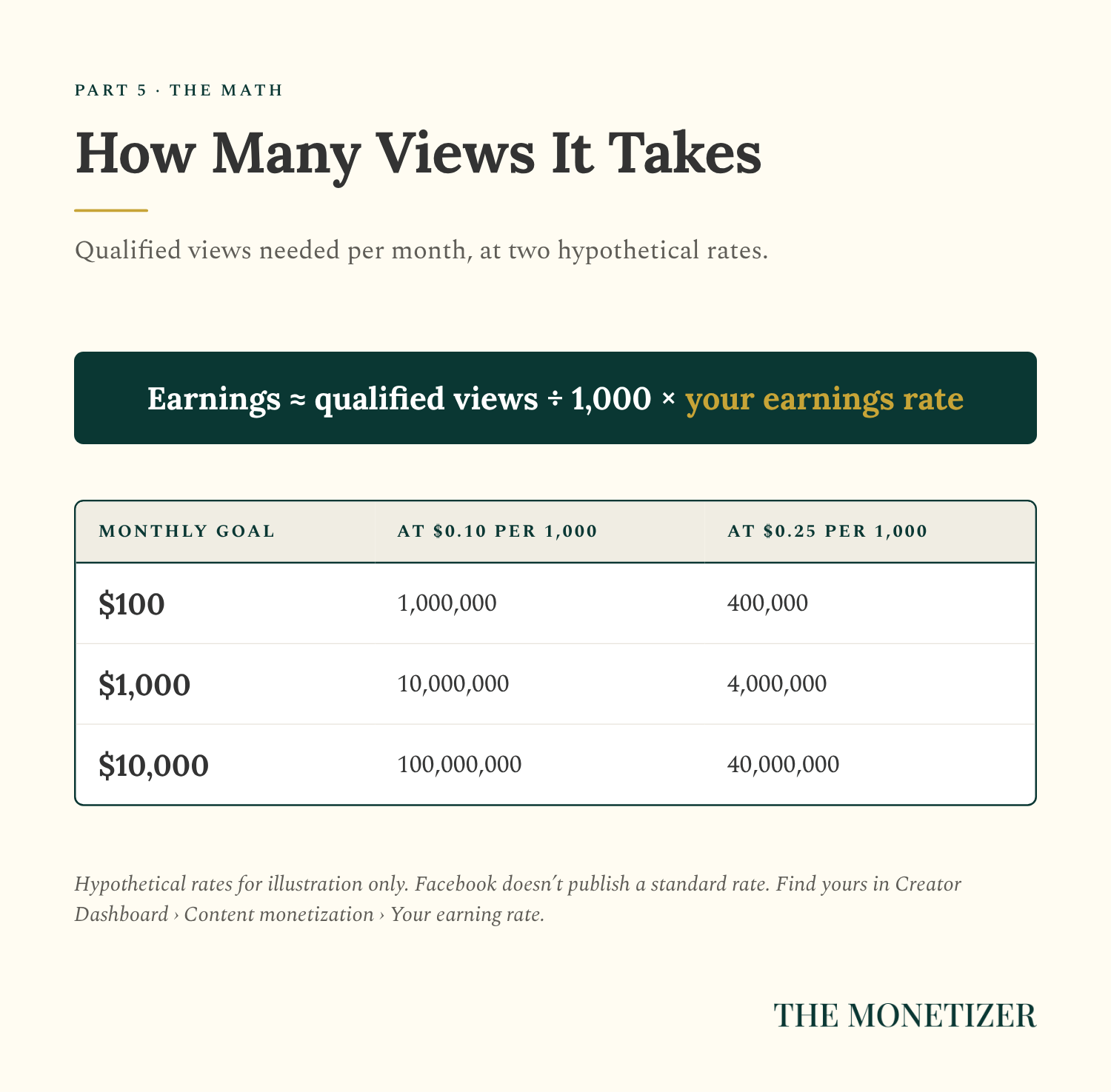
At rates like these, a single view is worth a tiny fraction of a cent. Facebook money comes from volume: lots of original posts, people who stick around, and the patience to check your numbers every week. At $0.10 per 1,000, one viral post would need 10 million qualified views to pay you $1,000.
Step 14: Claim Bonuses Before They Expire
Facebook runs bonuses inside Content Monetization: earnings boosts, posting challenges, and one-off tasks. You’ll find them under Bonuses on the Content monetization page of your dashboard.
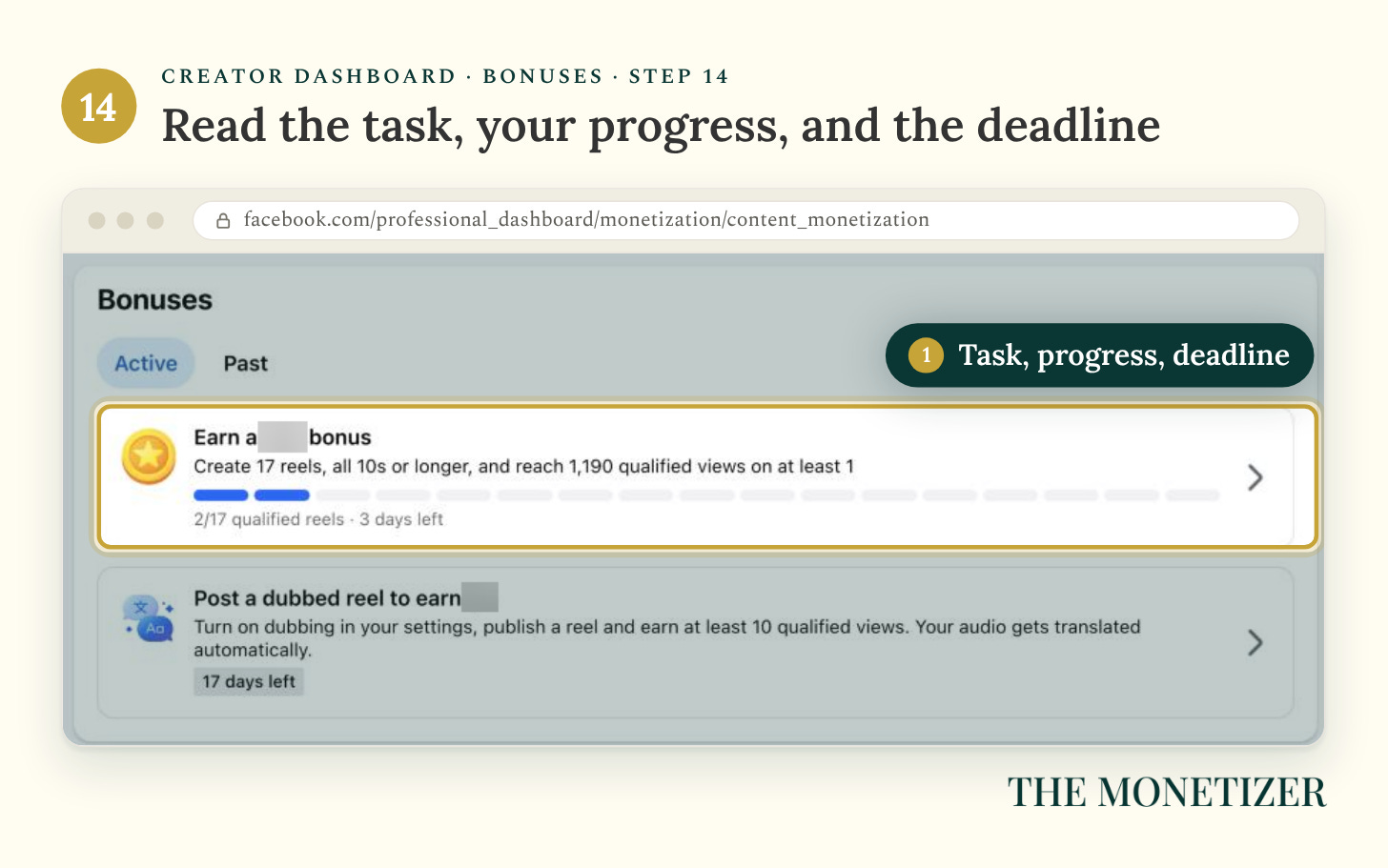
Read the fine print on every one. Some boosts only kick in after you activate them, and some only count reels of a certain length. If you earn from a bonus, your payout account has to be set up before the bonus period ends.
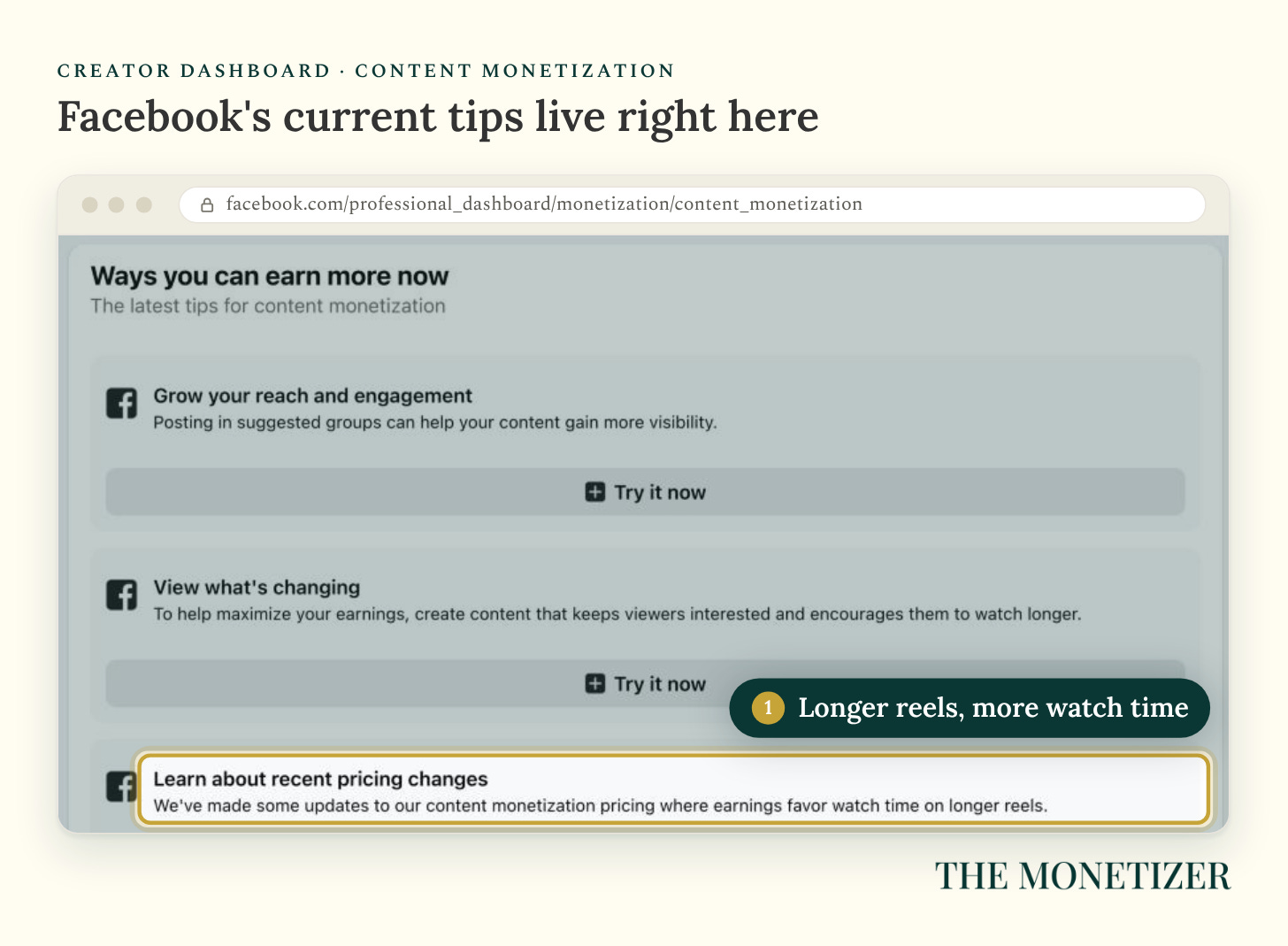
Below your bonuses, Ways you can earn more now lists Facebook’s current tips. Right now one of them says pricing changes favor watch time on longer reels.
Part 6: Get Paid
Facebook releases payouts around the 21st of every month for what you earned the month before. January’s earnings, for example, pay out around February 21.
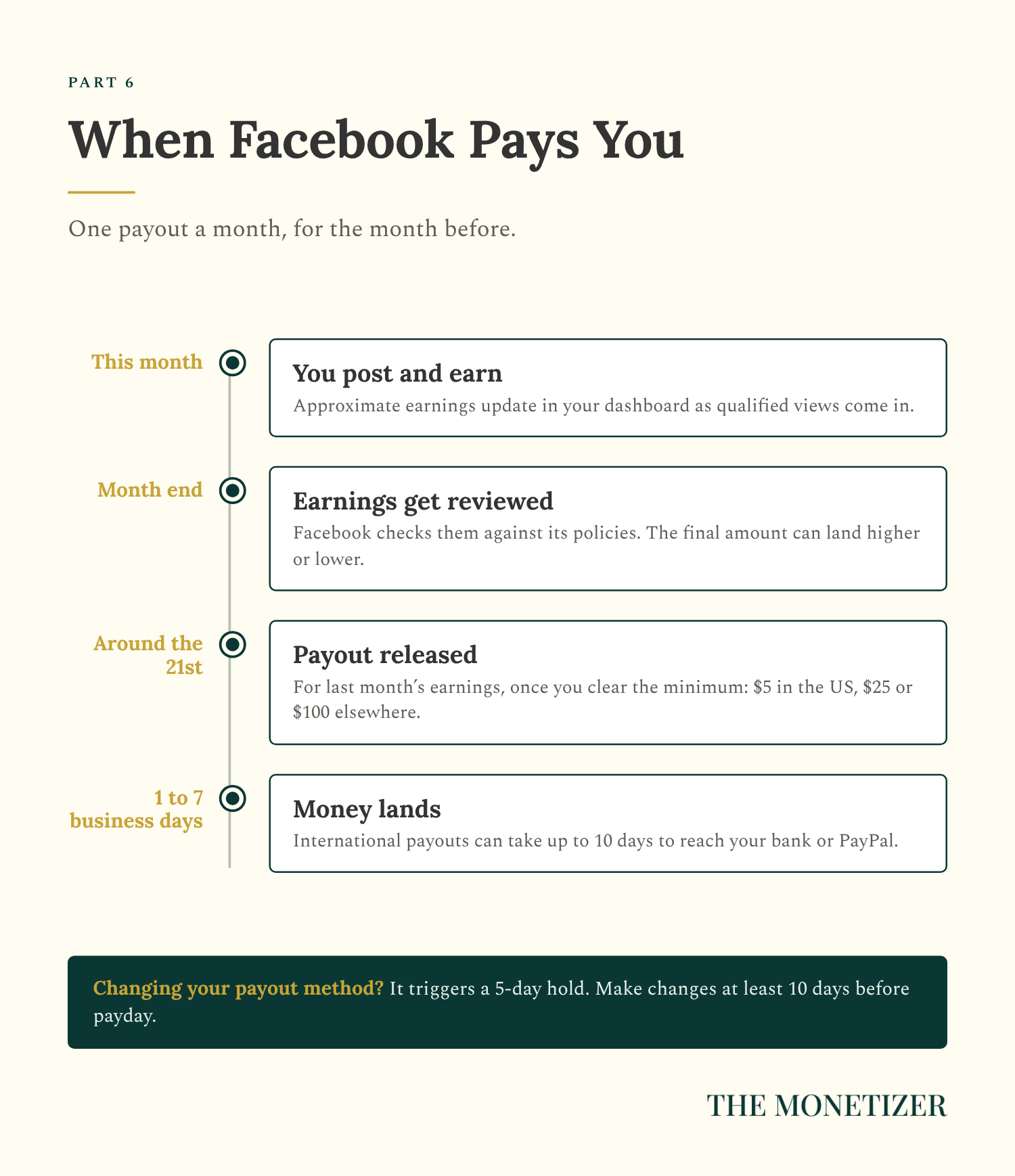
A few rules decide whether the money moves:
Minimums: In the US, you get paid once your balance reaches $5. Outside the US, the minimum is $100 for wire transfers and $25 for other payout methods. Anything below the minimum rolls into the next month.
Bank timing: Payouts usually take 1 to 7 business days to land. International payouts can take up to 10 days.
Where to check: In your dashboard, go to Tools, then Payouts. In Meta Business Suite, it’s All tools, then Payouts.
If your payout hasn’t shown up seven business days after the payout date, check with your bank first. Then make sure your payout account is complete and you hit the minimum.
The 10-Minute Weekly Earnings Check
Once you’re earning, the job becomes one habit. Every week, open the same five screens in the same order:
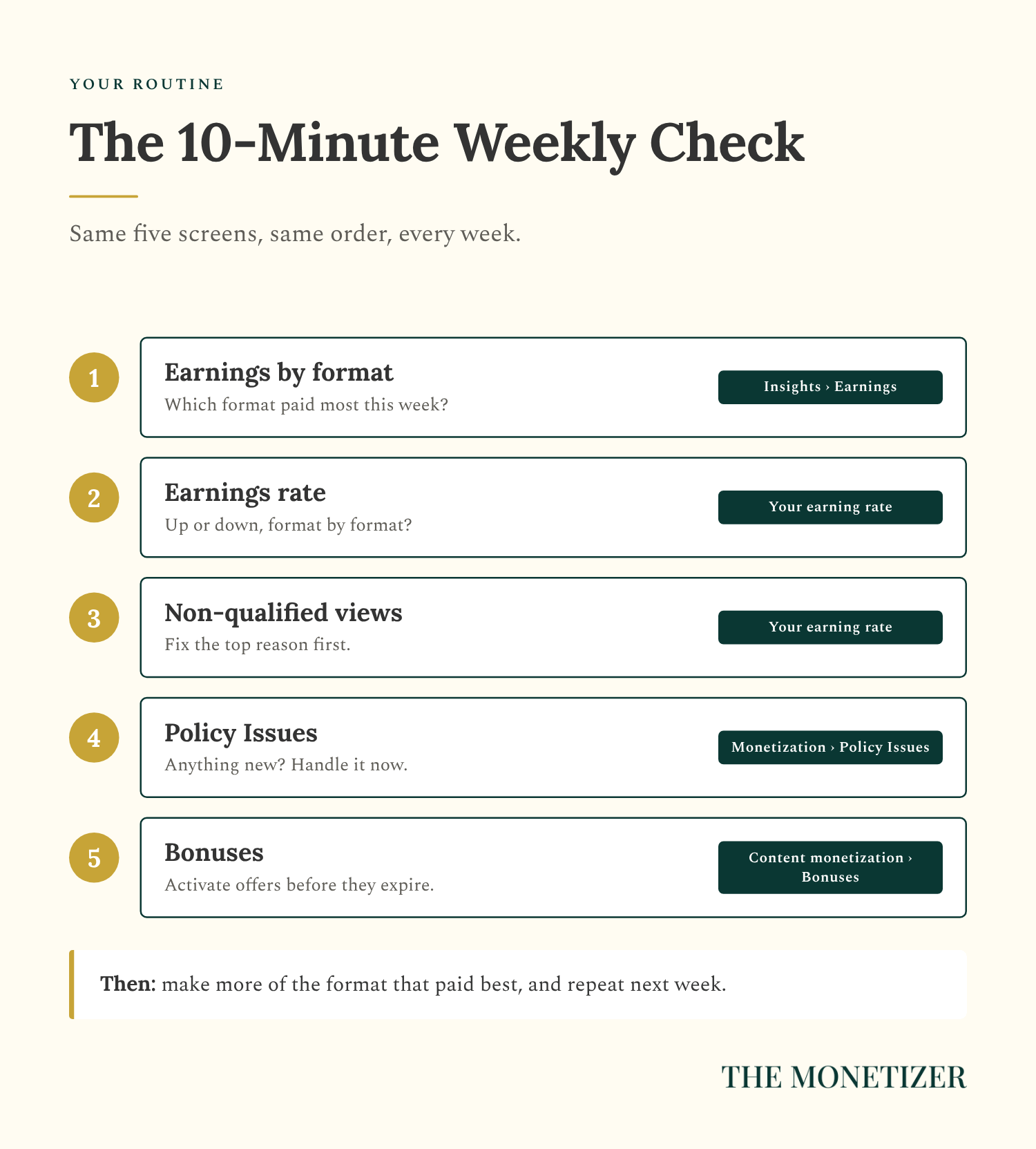
Earnings by format (Step 12). Which format paid most this week?
Earnings rate (Step 13). Is it up or down for each format?
Non-qualified views (Step 13). Fix the top reason first.
Policy Issues (Step 7). Handle anything new right away.
Bonuses (Step 14). Activate new offers before they expire.
Then post more of whatever paid best, and run the same check next week.
Facebook Monetization Questions, Answered
How Much Does Facebook Pay per 1,000 Views?
Facebook doesn’t publish a fixed rate. It pays based on factors like qualified views and watch time, and your dashboard shows your earnings rate per 1,000 qualified views for each format. Your rate changes with format, audience, and how long people watch. Check it under Content monetization, then Your earning rate.
How Many Followers Do You Need to Get Monetized?
Meta doesn’t publish a follower minimum for Content Monetization. The program is invite-only, and Facebook sends invitations to creators it considers eligible. Stars and Subscriptions show their own criteria in your dashboard. If you have at least 100,000 followers on Instagram, TikTok, or YouTube, Creator Fast Track can get you in right away.
How Many Views Do You Need to Earn on Facebook?
Once you’re in the program, every qualified view can earn something, but it adds up slowly. At a hypothetical rate of $0.10 per 1,000 qualified views, $1,000 takes 10 million qualified views. Your real rate is in your dashboard.
Can You Make Money on a Personal Facebook Profile?
Yes. Turn on pro mode, and your profile can join Content Monetization once you’re invited. You have to be 18 or older.
When Does Facebook Pay You?
Around the 21st of each month, for the previous month’s earnings. You also need a finished payout account, verified tax info, and a balance above the minimum.
Do Reels Make More Money Than Photos?
Across Facebook, reels took about 60% of creator payouts in 2025. That doesn’t mean reels will pay you best. Check your earnings by format in Meta Business Suite and let your own numbers decide.
Want the System Behind My Facebook Income?
Getting into Content Monetization takes an afternoon of setup, then a wait for Facebook’s invite. Building Pages that earn every month is the business.
That’s what I teach in the Facebook Monetization Master Class, for anyone who wants to start earning from Facebook content quickly. This guide gets your Page ready to get paid. The class shows you how I do it. (And when you’re ready to turn Facebook followers into an audience you own, here’s how to get your first 1,000 Substack subscribers.)
Paid Subscriber Bonus: The Facebook Monetization Starter Kit
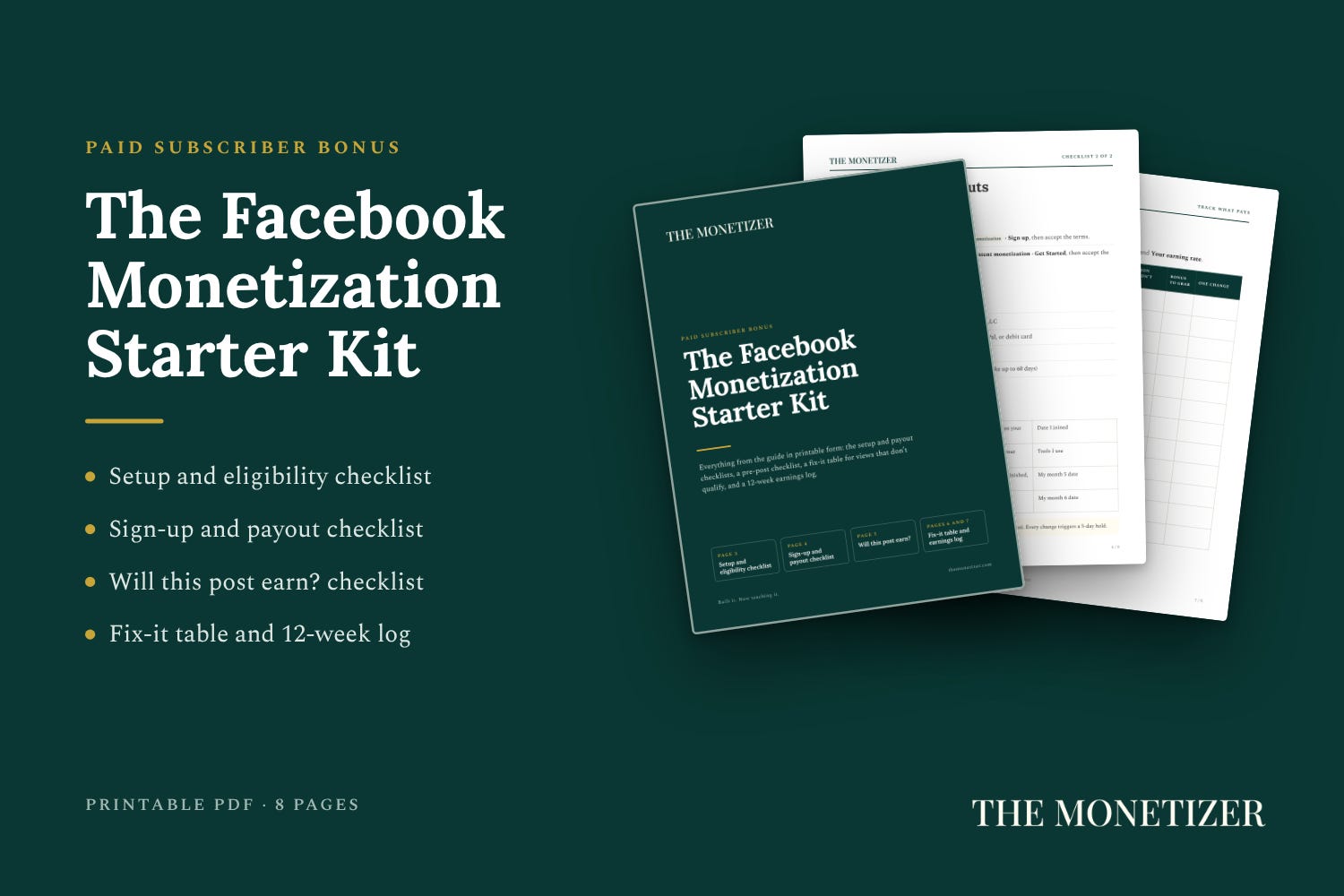
Paid subscribers get the printable kit that goes with this guide:
A setup and eligibility checklist, from Page type to Policy Issues
A payout setup checklist with Facebook’s deadlines in one place
A pre-post checklist, so every post you publish can earn
A qualified-views fix-it table and a 12-week earnings log
